
Multi‑monitor configurations are increasingly common for both professional workflows and gaming setups. Choosing the right combination requires careful attention to screen size, resolution, and ergonomic placement.
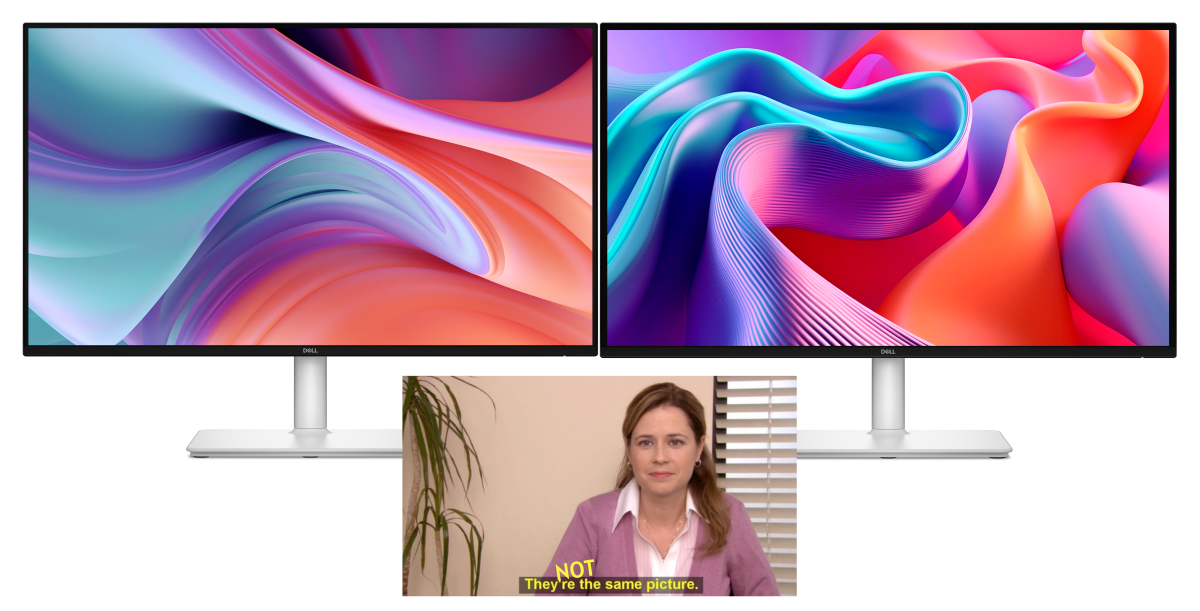
Matching monitors by size and resolution creates a uniform appearance. Using identical models simplifies alignment and eliminates visual inconsistencies.
When identical models are unavailable, select displays that share the same size and resolution. Aspect ratio also matters; the most common ratio is 16:9, but 16:10 and ultrawide 21:9 ratios are also used in many setups.
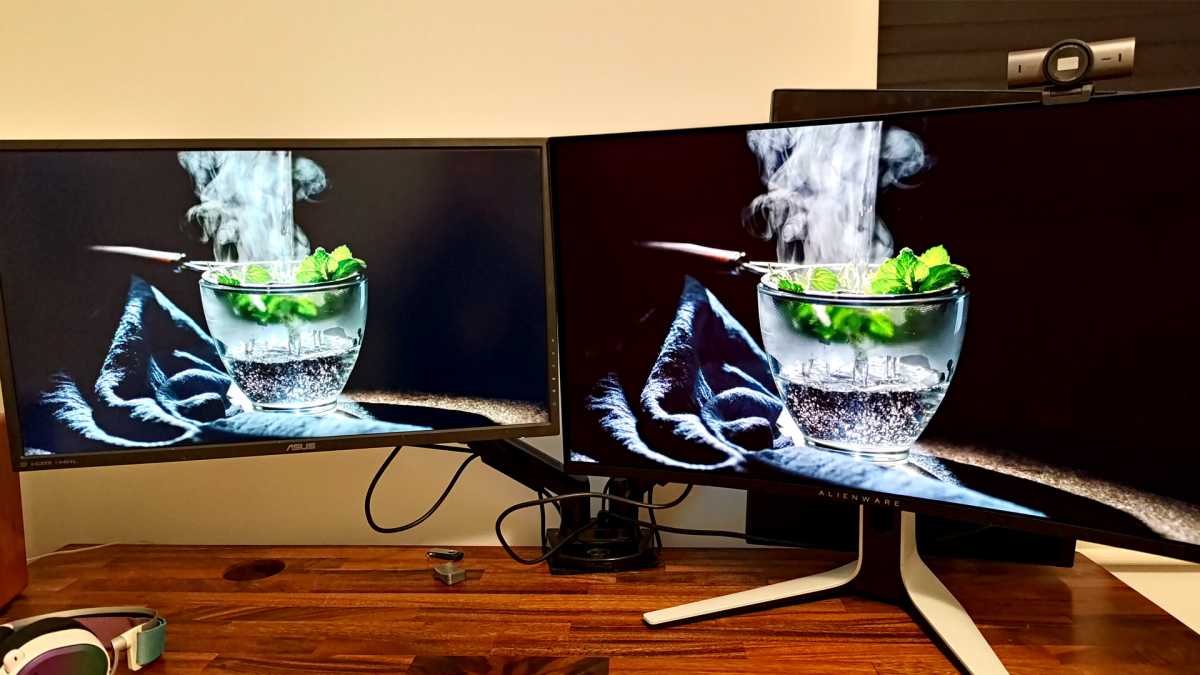
Screen density, measured in DPI or PPI, directly affects sharpness and the size of user interface elements. Monitors with differing pixel densities cause mismatched text and icons, so it is best to choose displays with the same DPI across the array.
For example, two 27‑inch monitors—one at 1080p and the other at 1440p—will differ by roughly 25% in pixel density, making UI elements appear smaller on the higher‑resolution screen. Operating‑system scaling can partially compensate, but a perfect match is rarely achieved.
Panel quality varies among monitors. IPS panels deliver color accuracy, VA panels offer higher contrast, and OLED panels provide vibrant colors and fast response times. Selecting a high‑quality panel for the primary display can balance cost and performance while keeping secondary monitors more budget‑friendly.
In gaming configurations, a high‑refresh‑rate panel enhances motion clarity. Secondary monitors can use standard panels to reduce expense while maintaining visual consistency across the workspace.
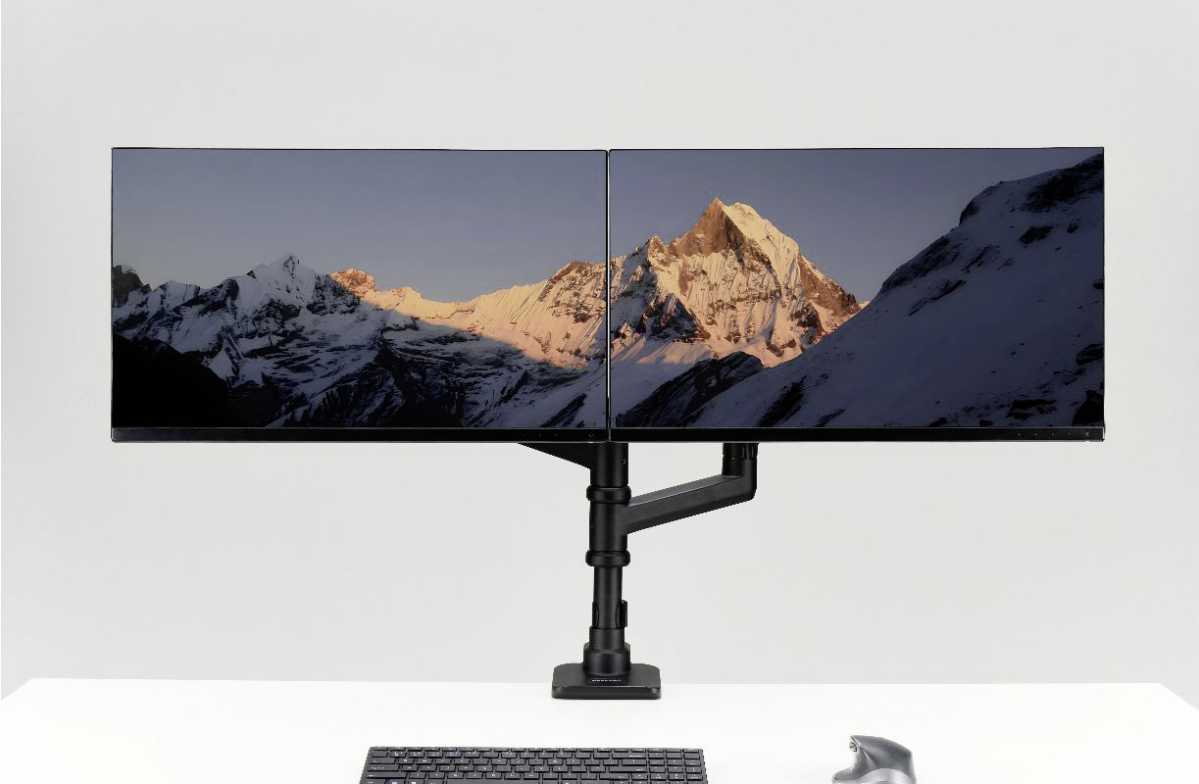
Proper mounting is essential for a cohesive setup. VESA‑compatible stands or arms allow height and angle adjustments, and using a separate arm for each monitor simplifies repositioning.
Built‑in stands often lack adjustment capabilities. VESA stands or arms provide ergonomic flexibility and free desk space; larger monitors may require reinforced arms for stability.
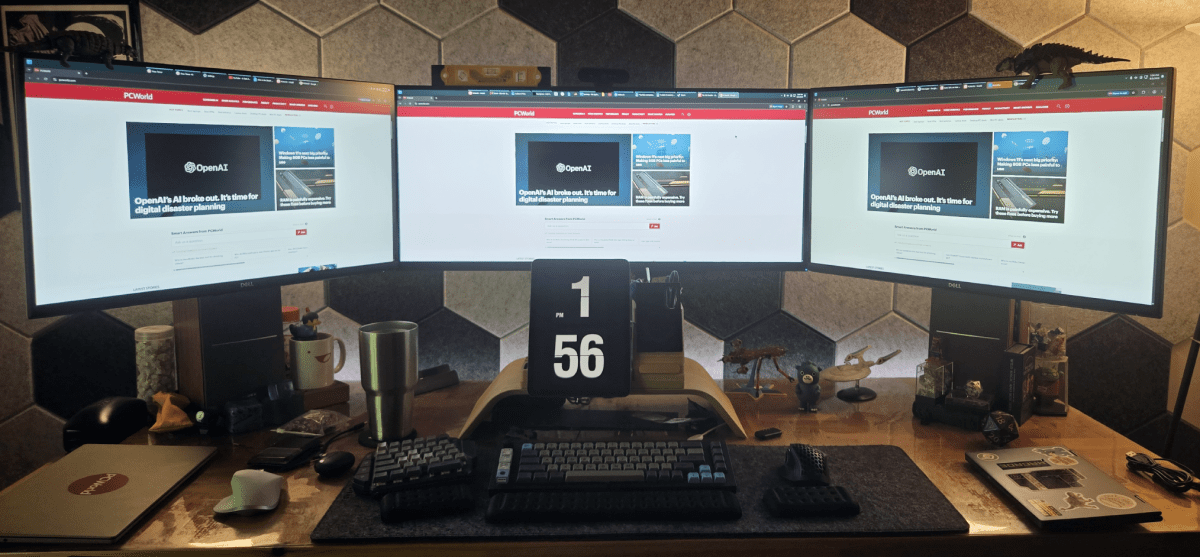
Arranging the screens requires consistent eye level. Use bubble levels and rulers to align monitors horizontally, and keep the distance between the eye and the central monitor around 30 inches for optimal comfort.
Adjust tilt and swivel to minimize neck strain, and allow slight spacing between monitors to avoid a continuous bezel. Proper cable management keeps the desk tidy and reduces clutter.
Lighting also impacts user experience. A well‑lit workspace reduces eye strain, and background lighting behind monitors can improve visibility and reduce glare.
By carefully matching sizes, densities, and panels, and by employing proper mounting and ergonomic arrangement, users can create a seamless multi‑monitor environment that supports both productivity and entertainment.


