
Summer heat can strain both people and technology. As ambient temperatures climb, computer cooling systems must work harder, leading to louder fans, higher power consumption, and accelerated wear on internal components.
Modern processors and graphics cards protect themselves through thermal throttling. When temperatures approach a chip’s maximum, the device lowers clock speed and voltage, reducing heat output. This performance drop is usually noticeable before any emergency shutdown occurs.
Prolonged exposure to high temperatures, however, accelerates component aging. Fan bearings lose lubrication, capacitors lose electrolyte, and lithium‑ion batteries degrade faster when kept at full charge in hot environments.
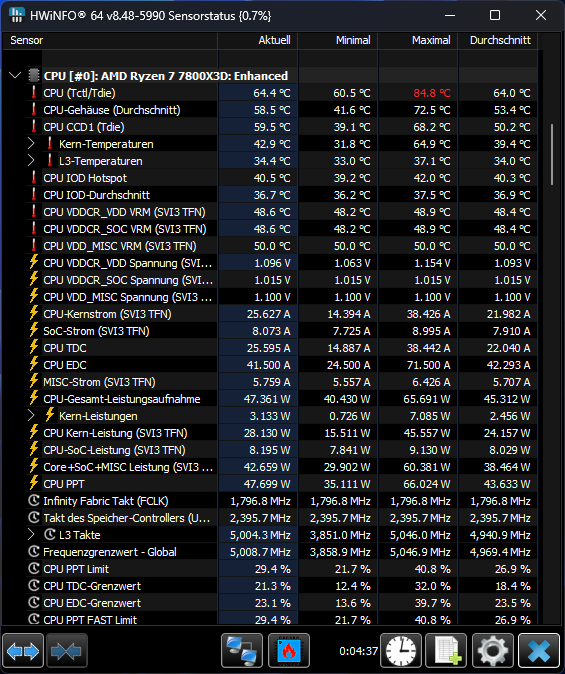
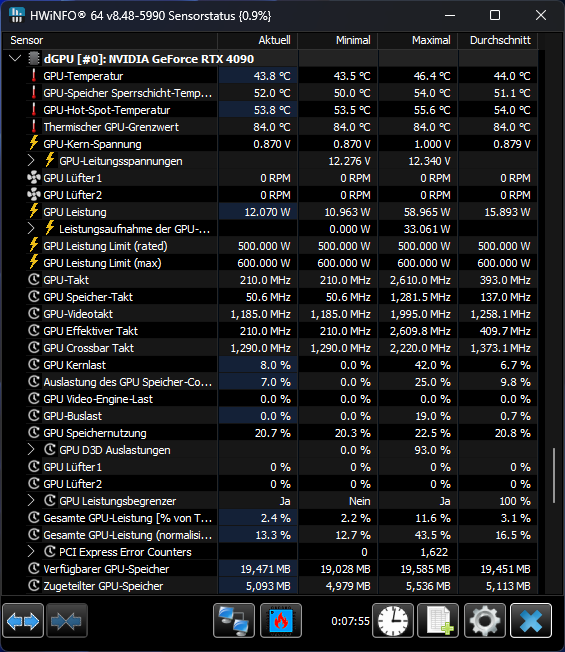
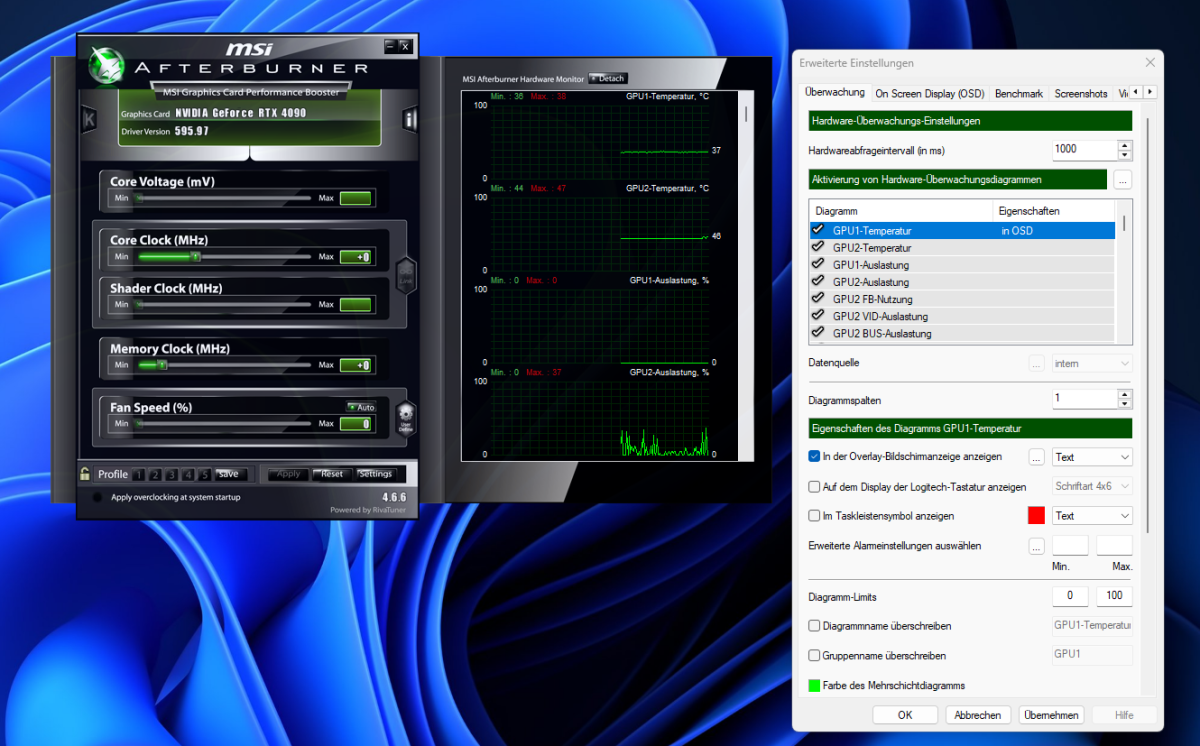
To determine if a computer is overheating, users can employ diagnostic software that reads sensor data from the CPU, GPU, drives, and other components. These tools display current, minimum, maximum, and average temperatures, as well as any instances of throttling.
Typical safe operating ranges vary by hardware. CPUs generally stay below 80 °C under load, GPUs between 90 °C and 110 °C depending on the brand, and NVMe SSDs throttle between 70 °C and 80 °C to prevent data loss.
If temperatures exceed these limits, software adjustments can help. Disabling unnecessary startup programs reduces idle load, while adjusting power settings to limit maximum processor state can suppress Turbo Boost and lower heat generation.
Physical placement also matters. Avoid placing a computer in direct sunlight or in the warmest part of a room. Keep the unit away from walls and other heat sources, and ensure adequate ventilation around the chassis.
Dust accumulation on cooling fins and fan blades is a common cause of overheating. Periodic cleaning with compressed air improves airflow, allowing fans to operate at lower speeds and reducing noise.
After cleaning, verify fan operation. A functioning 120‑mm case fan should spin from a few hundred to about 2,000 rpm under load. A fan that remains at 0 rpm when the system is warm indicates a fault or disconnection.
If a CPU or GPU remains hotter than its peers, the thermal paste may have degraded. Reapplying paste improves heat transfer between the chip and its cooler, often reducing temperatures by several degrees.
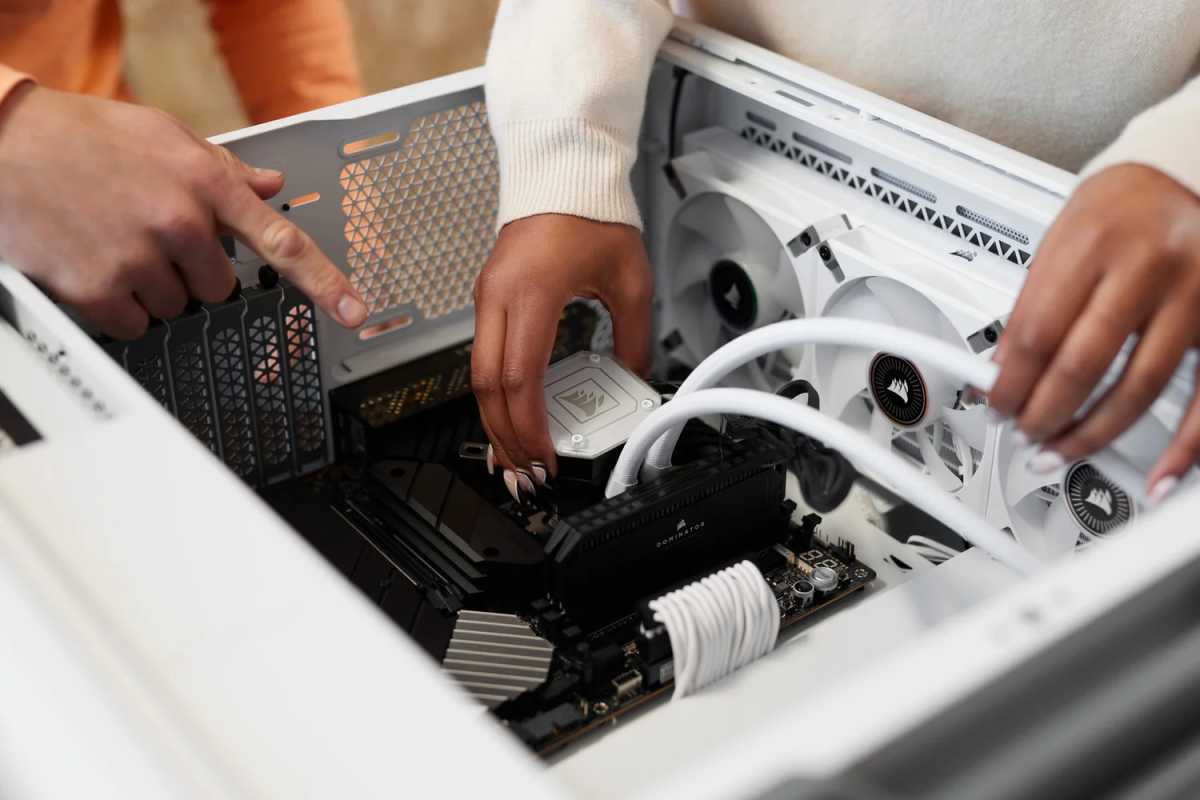
Adding case fans can further improve airflow. A balanced intake and exhaust arrangement creates positive pressure, preventing dust ingress while drawing cool air through the system.
Laptops lack the space for internal fan upgrades, so external solutions are recommended. Elevating the rear of a laptop or using an active cooling pad with built‑in fans can lower temperatures by up to 20 °C under load.
Regardless of the device, maintaining proper cooling extends component lifespan and preserves performance. Regular temperature checks, software tuning, dust cleaning, and timely thermal paste replacement form a comprehensive strategy against summer heat stress.


