
At a glance
Expert's Rating
Pros
- Extremely powerful and granular selection criteria
- Support for legacy and modern storage — including online
- Excellent performance
- Anti-ransomware monitoring
- Perpetual license unlike some of the competition
Cons
- Steep learning curve
- Unresolved interface bugs
- Expensive
Our Verdict
Retrospect 20 Desktop is one of the most versatile file backup programs you can buy, sporting ransomware protection, disaster recovery, and support for cloud storage. But it’s pricey, the interface and methodologies take some getting used to, and minor foibles persist through major revisions.
Price When Reviewed
This value will show the geolocated pricing text for product undefined
Best Pricing Today
Best Prices Today: Retrospect Desktop
Longevity is a good thing when it comes to software, as it generally means it’s capable and reliable. Case in point: Retrospect. PCWorld’s art department relied on Retrospect (and tape!) for backup back in the ’90s. I was the one operating it. I kid you not.
Obviously, with several decades under its belt, the already powerful Retrospect has evolved. Retrospect 18 added some very handy anti-ransomware features and version 19 integrated support for cloud storage — both via its own native storage and various third-party vendors. So what gives this time?
Read on to learn more, then see or roundup of the best online backup services for comparison.
What’s new in Retrospect 20 Desktop?
The latest version of Retrospect — version 20 — offers a look at the new Novus UI (user interface), though it’s a teaser that requires that the older client also be running. If not, you get the “Engine is not running” message you see in the screen capture below. A great deal of functionality is not accessible from the new UI either.
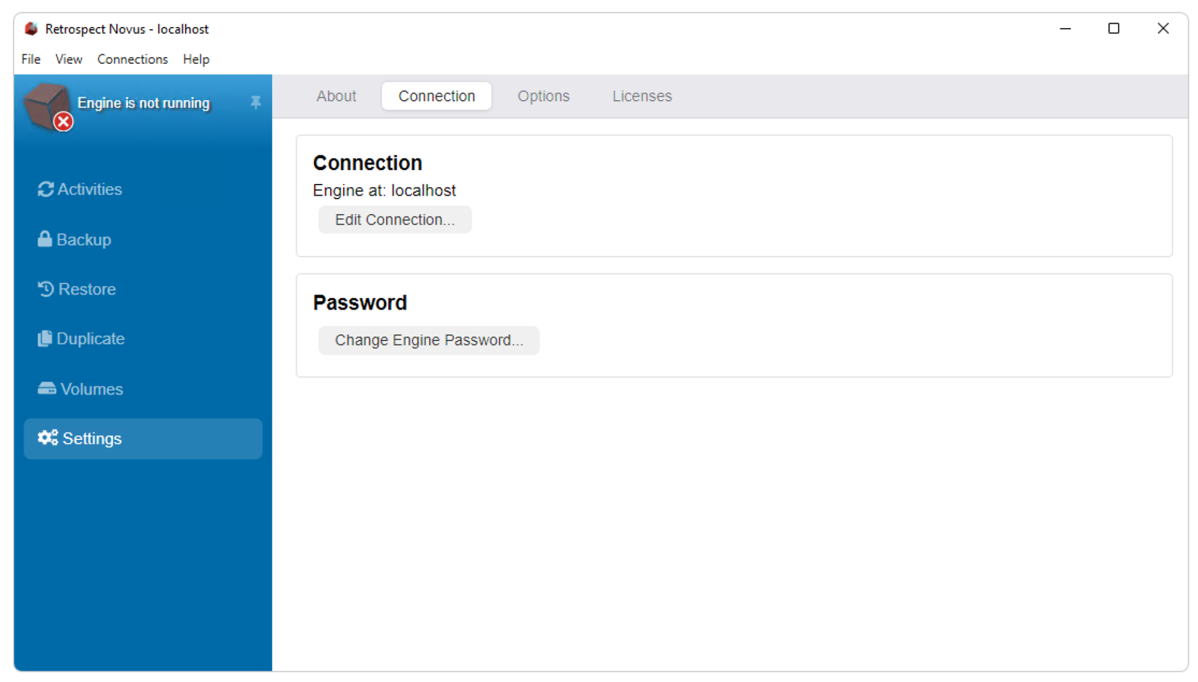
I like the look of Novus, though because so much functionality is currently missing, I’m not able to confirm how much of the current workflow remains intact. I’d bet it’s going be much the same so as not to upset current customers and maintain backwards compatibility.
Beyond the new UI, there’s not a lot to get hyped up about. In fact, there’s some addition by subtraction. Retrospect has removed its bare metal, aka dissimilar hardware restore feature.
Bare metal restore is backup-industry speak for the ability to restore to a machine other than the specific type you backed up from, by providing assistance by way of device drivers. However, Windows has developed a huge collection of generic as well as specific drivers that basically make this feature moot.
I recently proved Window’s current prowess at this task by moving PCWorld’s software testbed Windows 11 installation from an AMD Ryzen motherboard to a newer Intel Core motherboard. Some post-transfer maintenance (removing old drivers, installing new ones, etc.) was required, as with all such endeavors, but in the end it worked fine.
There is also some addition by addition. Already expensive, Retrospect and its cloud storage are even pricier this go around.
How much does Retrospect 20 Desktop cost?
Retrospect Desktop charges a hefty $179 for a perpetual license, covering one computer with five networked clients, and including a free year of Annual Support and Maintenance.
Given that high-profile competition such as Acronis True Image and Macrium Relfect X are now subscription-only (they go into restore-only mode if you stop paying), the Retrospect client can be a bargain over time. Forgetting of course that there are much cheaper perpetual license programs out there from Aomei, Easeus, and others.
Note that perpetual licenses retain functionality forever and still receive dot upgrades. You’ll also see a Premium option in the image below for $259. Note that is $50 more expensive than the last time I reviewed the product. The main perquisite of the Premium version is the ability to back up an unlimited number of online email accounts.
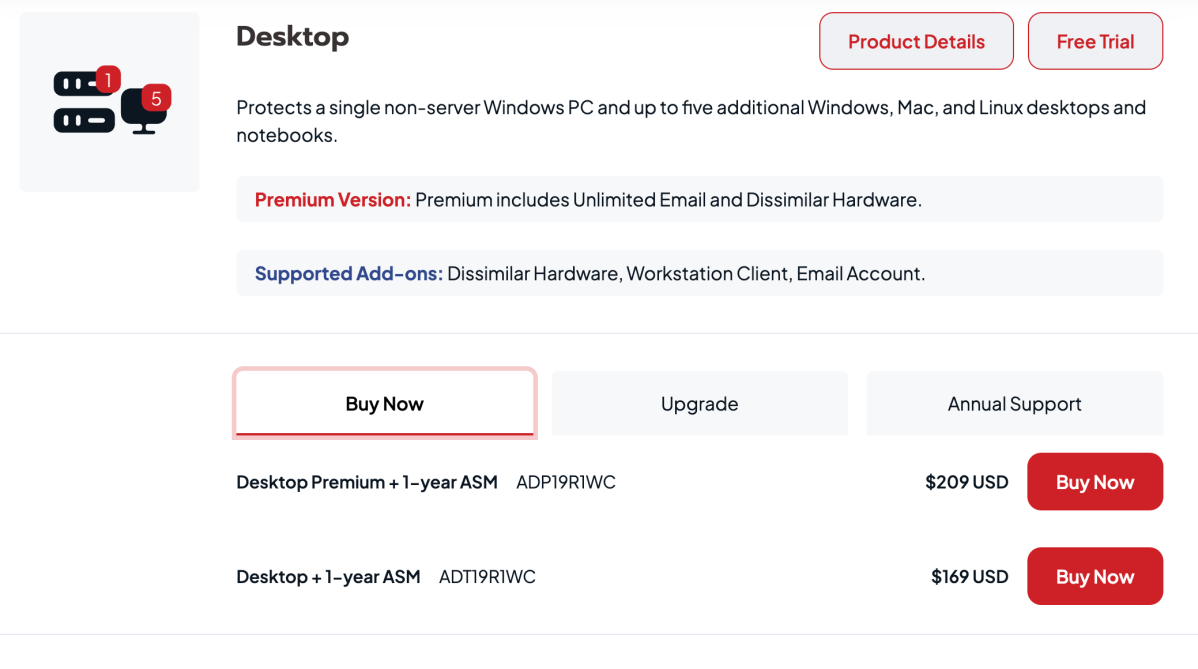
If you want a more detailed breakdown on the differences between the cheaper (and less effective) Solo and Desktop versions, as well as info on some of the enterprise versions, check the comparison chart on the Retrospect site. This chart was rather confused and not totally accurate at the time of this writing, but Retrospect promised fixes.
Not so much of a bargain over time is Retrospect’s online storage, which is available for $24 a month for 1TB, $109 monthly for 5TB, and $189 a month for 10TB. If that seems a bit pricy, it is. Pricier than the last time I looked.
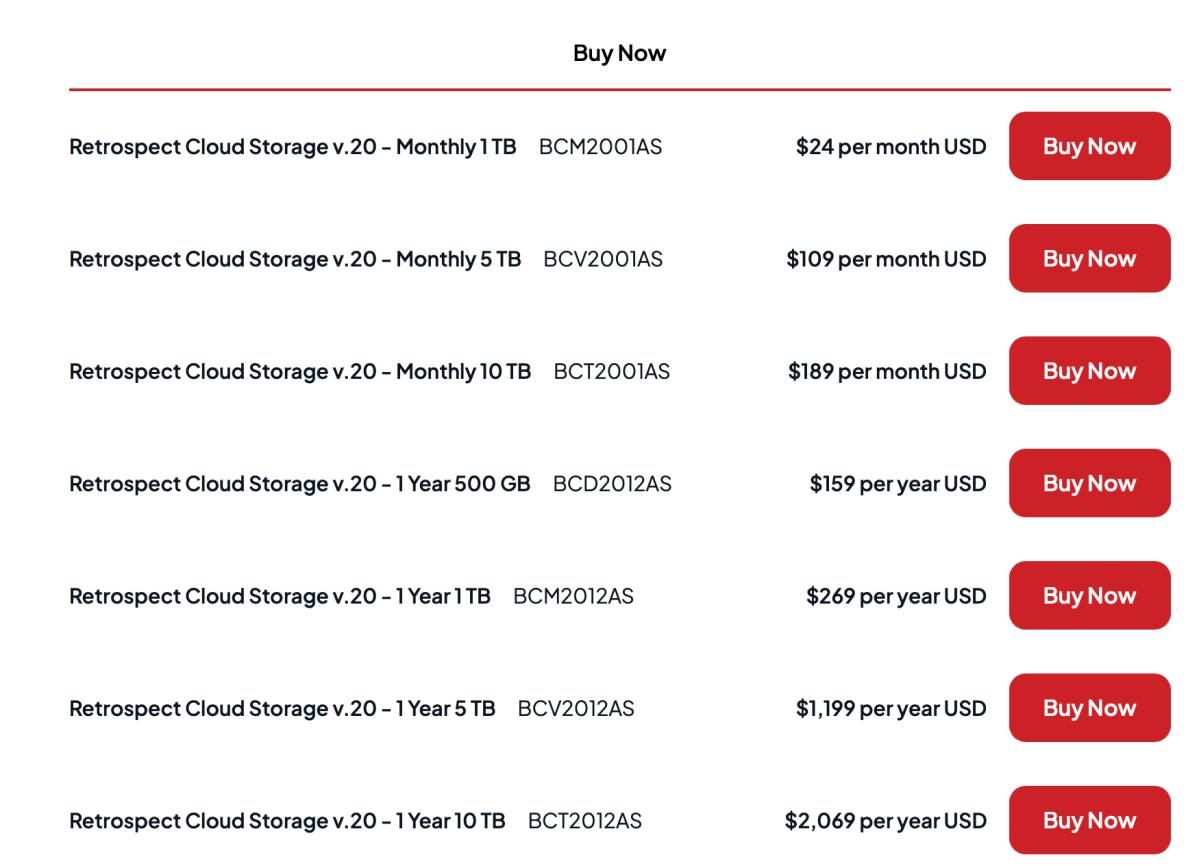
In fact, Retrospect is far pricier than Wasabi, the online storage service Retrospect leverages, which was $7 a month per TB at the time of this writing. To be fair, there are yearly plans available. They’re cheaper by about roughly 10 percent — so not by much.
Again, while the Retrospect 20 Desktop client might become a bargain compared to the subscription alternatives over time, the company’s cloud storage, as currently priced, will not. I’d shop around, for sure.
What are Retrospect 20 Desktop’s features?
Retrospect is an enterprise-level backup program that is also sold to smaller businesses and end users. In its upper tiers, Retrospect 20 offers features well beyond the scope and interest of the average user. But everything thatisof interest to we, the hoi polloi, is included in the Desktop version I tested here.
The main features and options of Retrospect Desktop include: compression and password–protected encryption; extremely granular scheduling; pre- and post-backup operations; filtering (including a copious helping of presets for common file types); differential, incremental, full, and block-level (only changed portions of a file) backups; and deduplication (not backing up copies of the same file).
Additionally, there’s disaster recovery, backup from NAS or network location sources, online email account (IMAP) backup, the ability to back up using tape drives (yes, they still exist), and the ability to run four rather than the two execution units (concurrent operations/threads) that the cheaper Solo version offers, so you can fire off more backups at the same time.
Arguably, Retrospect 20 Desktop’s greatest strength is its support for an extraordinarily wide variety of backup media — everything from hard drives to optical discs to tape drives as I mentioned having used up top. Even more advanced backup hardware such as media carousels (think jukebox) are supported by the enterprise versions of the program.
Retrospect Desktop’s greatest strength is arguably its support for an extraordinarily wide variety of backup media.
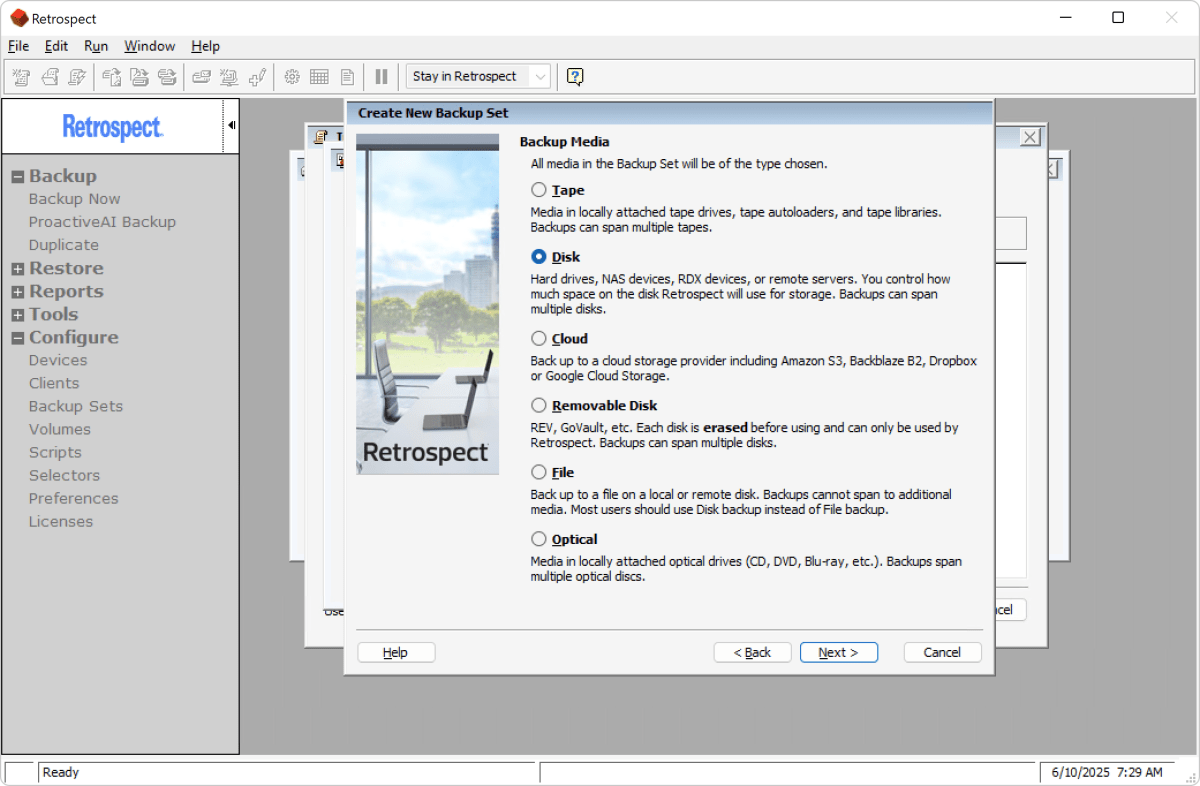
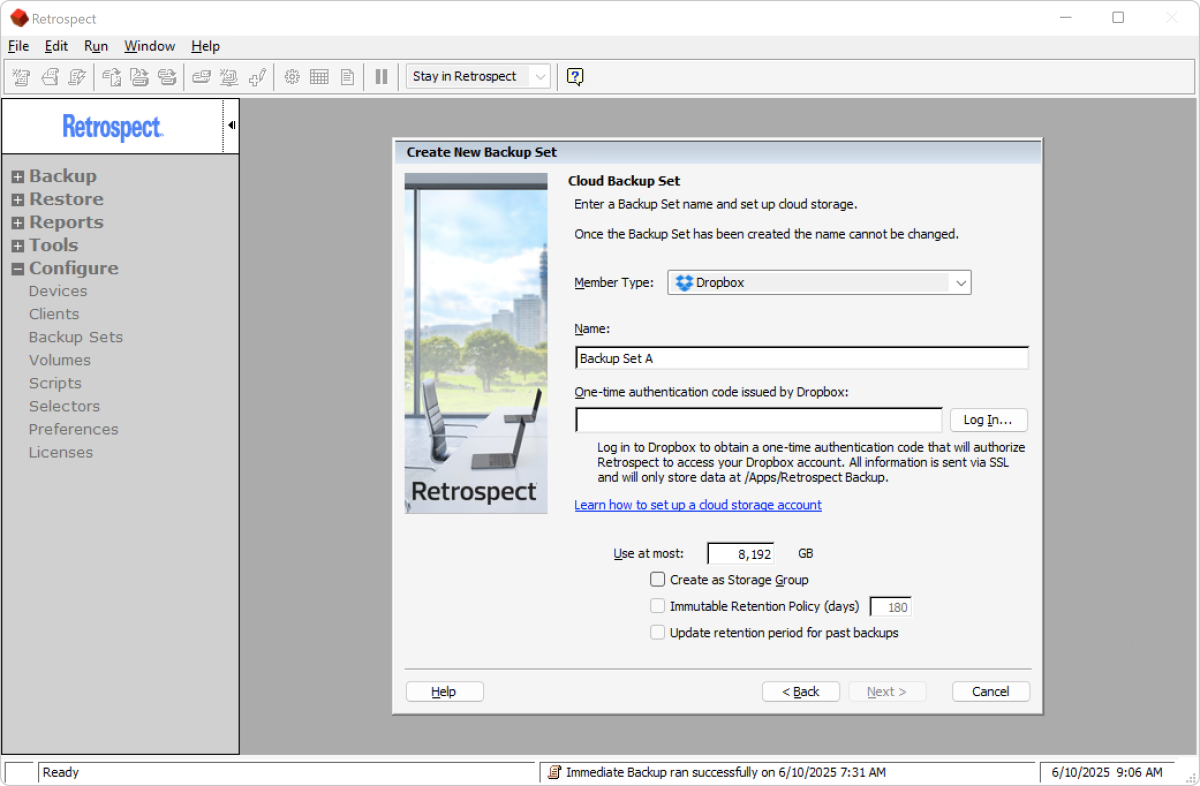
Then there’s broad support for cloud storage. This includes third-party services such as Amazon S3 and S3-compatibles, Backblaze B2, Dropbox, Wasabi, Google Cloud, Azure, and even Retrospect’s own branded service leveraging the aforementioned Wasabi.
Missing from the cloud selection are the popular OneDrive and Google Drive, which will disappoint many end users. In my talks with various backup-software developers, it seems there are hurdles here — albeit hurdles that others services have managed to overcome.
A very handy ransomware-related feature (more on ransomware in a bit) is the Compare function that lets you see the differences Retrospect has noted between your current data and a backup. This gives you a more granular picture of changes that might indicate suspicious activity such as oddly renamed files, duplicates with different extensions, etc. Additionally, if Retrospect sees a troubling pattern, it will flag it as a possible ransomware attack.
Below is the Retrospect Dashboard, a huge clue as to the program’s enterprise bent. For end users it can track the Retrospect backups of all the PCs on you home network.
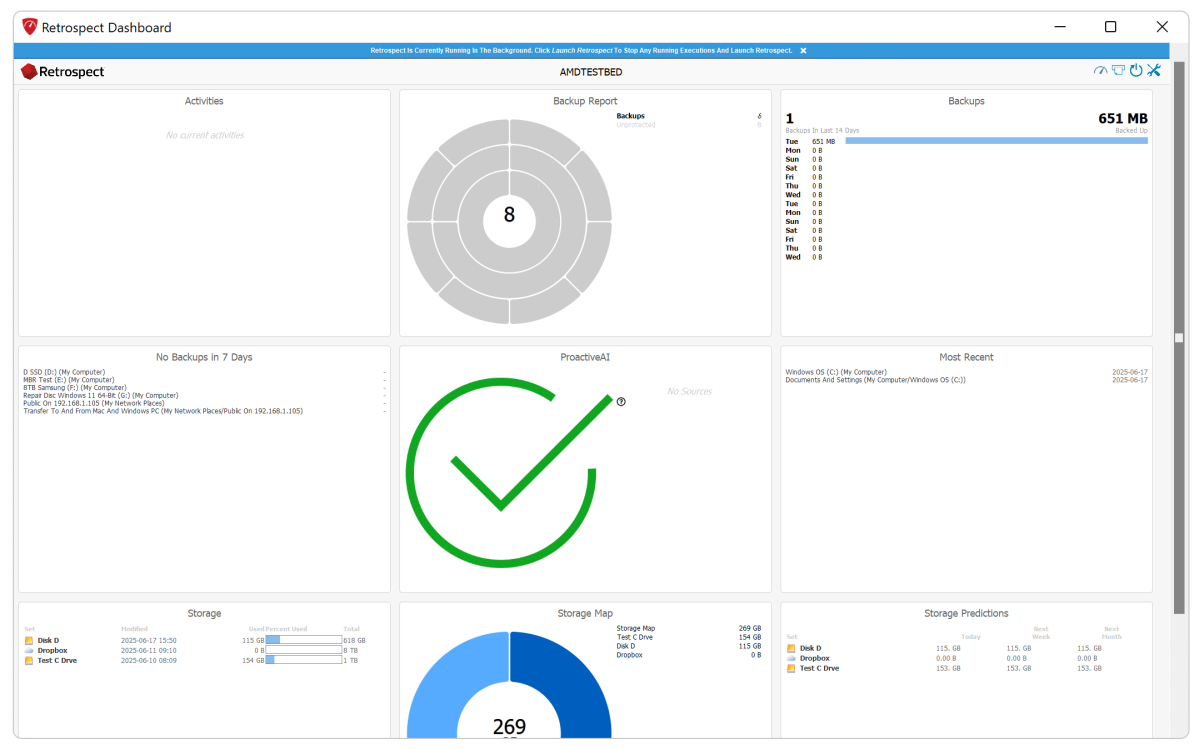
Note that Retrospect is file backup, not imaging, though as mentioned, there is disaster recovery boot media which accomplishes roughly the same thing as imaging.
Why should you worry about ransomware?
I once scoffed at the notion of ransomware and someone hijacking my files. Then I noticed a flood of newly encrypted files on Dropbox (synced from my own NAS) in place of the ones that should have been there. Sure enough….
There was no permanent damage thanks to a daily local backup (hint, hint…) but it was a chilling, infuriating ride. If the perpetrators had been in the same room, I’d be in the hoosegow now.
Some advice based on that experience:
- Don’t host your website on your NAS box using an outdated version of WordPress. (Yes, I know.) If you do, make sure it’s on its own dedicated box without important data on it.
- Limit internet access to your LAN and/or computer or take steps to secure your home Wi-Fi network and router.
Retrospect’s local anti-ransomware features aren’t real-time like a true anti-malware, anti-data-tampering background application (think Acronis True Image, Macrium Reflect, or Windows Defender).
Instead, before Retrospect starts backing up, it checks to see how much the data has changed and how. If the number of new or altered files exceeds a user-definable percentage, it cries foul and alerts you, meanwhile not overwriting anything in an existing backup. This is referred to as anomaly detection.
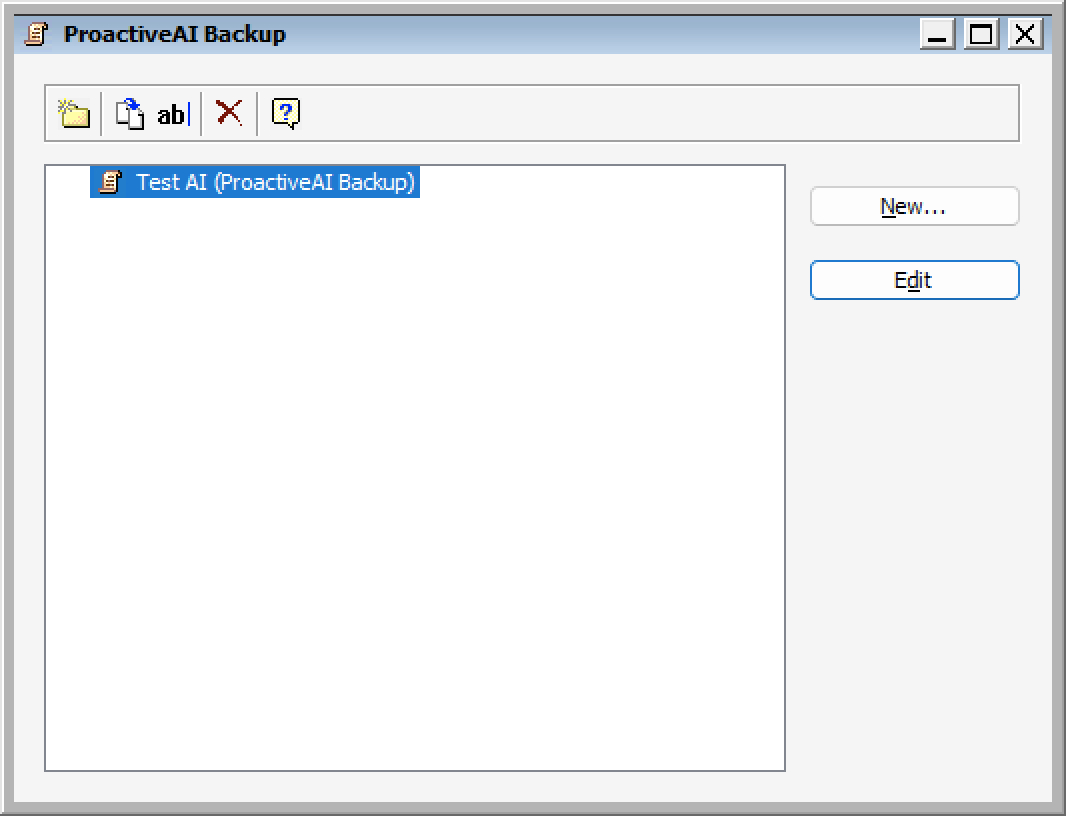
If you’re not familiar, most ransomware attacks involve encrypting your files (creating new ones), deleting the old ones, then ransoming the decryption key, which may or may not follow payment. It’s these wholesale changes that Retrospect is looking for.
Note that pre-backup anomaly detection is less resource intensive, but it doesn’t actually stop the ransomware. It simply protects your backups, enabling a successful recovery.
The entire efficacy of Retrospect’s anti-ransomware feature depends on you backing up regularly so you can restore the un-ransomed, unencrypted versions of your files. I suggest daily.
Part two of Retrospect’s anti-ransomware solution is interfacing with the immutable data option offered by services such as Backblaze, Wasabi, S3, etc. Immutable data is data that a storage service won’t allow to be altered or deleted for a set period of time — even by known entities, unless specifically disabled first by the administrator (you).
How easy is it to learn and use Retrospect 20 Desktop?
Retrospect functions a bit differently from most backup programs — a rather bold understatement, if I do say so myself. It all makes sense in the end, and the program’s power and versatility will be worth it for many, but the approach makes for a steep learning curve. Especially if you’re used to something else. Okay, make that basically everything else.
Hint: A good long perusal of the Retrospect 20 users guide will save you a lot of frustration. IMHO, Retrospect could use a user interface and workflow overhaul. However, it’s unlikely you’ll ever see it because of the vast existing user base. As to some of the particulars…
First off, the program’s vernacular will be peculiar to many, as well as terse. Data sources to be backed up are defined as “Volumes.” While this can be drives per normal nomenclature, they can also be clients on other computers, or files and folders, which are added under “Subvolumes,” and “Defined as volumes.”
Destinations are “Backup sets,” which makes sense when it comes to sets of media you might rotate, but isn’t intuitive to the average user. In case you’re not familiar, rotating means swapping out multiple discrete media according to a schedule — e.g., employing seven hard drives, optical disc/tape “Devices,” and using each only on a specific day of the week. The latter is really an enterprise thing where carousels and tape libraries that feed in the different media are still common.
“Selecting” is where you find the filters that skip or include various types of files. This is one area where Retrospect really shines — you can apply any number of rules or criteria about what to back up and what to skip.
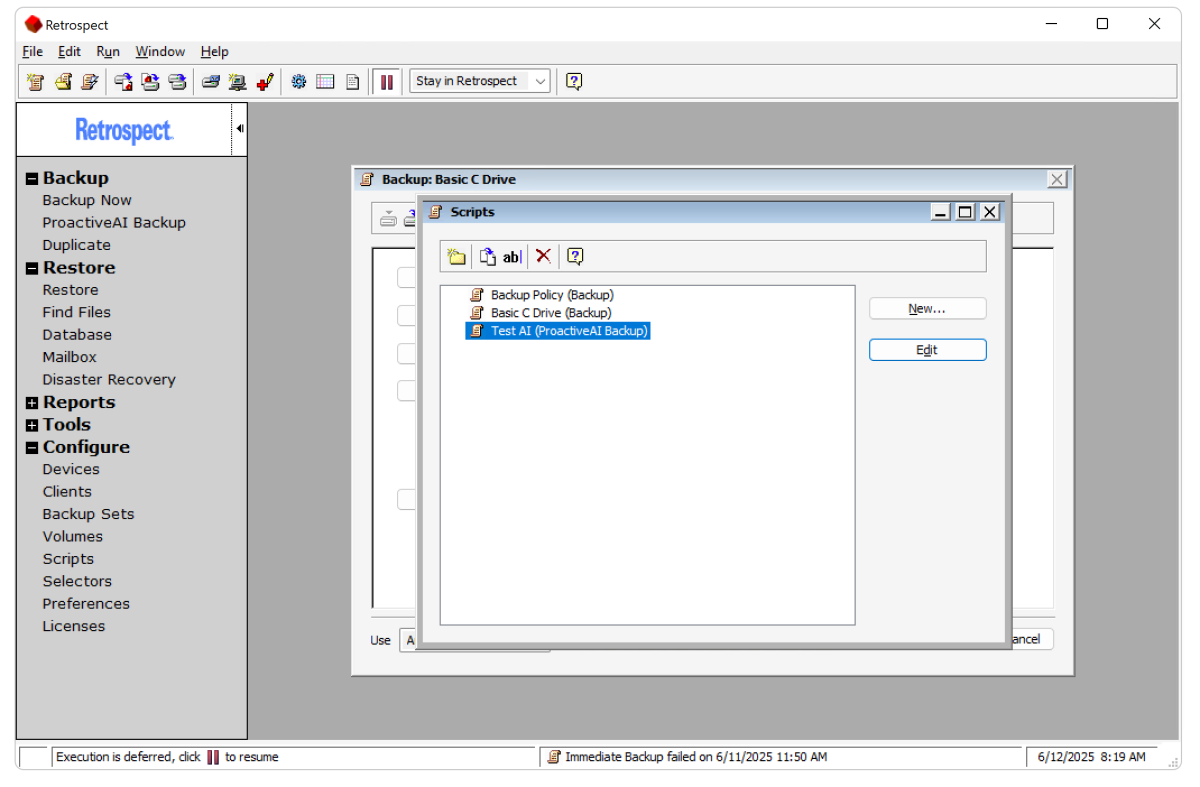
Jobs are “Scripts,” which aren’t created until you schedule a job created with “Backup Now.” Extremely efficient but not entirely intuitive. Scripts are not found under the Backup, but the Configure section of the function tree at the left of the main window.
Retrospect uses catalogs, i.e. indexes, for the backups and these are stored separately (locally with the program data) from the backup. These catalogs are part of backup sets, aka different jobs with the same destination. This has a great speed advantage when retrieving data from a slow medium such as tape. Remember, Retrospect is venerable and enterprise-centric.
You can, of course, rebuild the catalog from the backup should you somehow lose the original — however, this can be a rather lengthy procedure. As such, the company recommends that you back up these catalogs to external media for access in case you need to perform a full system recovery from a crashed computer.
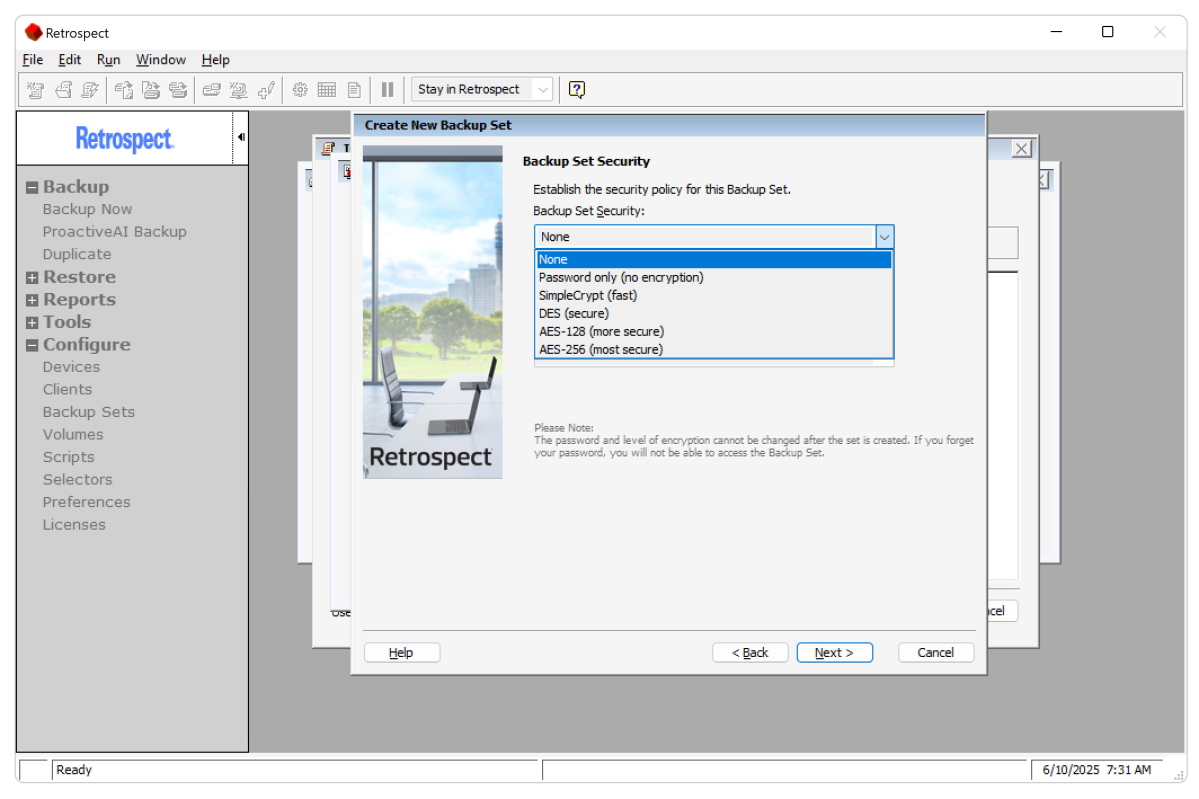
All that I’ve just discussed is workable, if a bit labyrinthine, but adding a network location as a source volume for backups was particularly odd. First, you must add a My Network container, then after you add that, you must double-click on it, and select from a number of network protocols.
Note that adding an online IMAP email account offers no test connect button. You define it, then double-click on the resulting volume (yes, email accounts are also volumes) to test.
If you misspell an email, server address, or password, you won’t find out until then. Alas, I tried three separate Gmail and Office 365 accounts, and got nothing but “login info invalid” messages, despite copying information directly from my login with a browser.
Adding a cloud destination is the usual sign-on-to-the-platform deal, or provide keys generated by your online storage provider, but this must be done for every different backup. Most programs retain your connection info for later use. Bummer.
So to answer the question posed by this section, Retrospect 20 Desktop is a bit of a handful to learn, but easy to use for the most part once you know it. Itisextremely versatile and powerful, but if you’re looking for something quick and simple, Retrospect 20 Desktop is likely not the best choice.
How does Retrospect 20 Desktop perform?
To confirm that Retrospect’s backup engine hadn’t tucked and run after 30 years (it hasn’t), I executed numerous backups: full, differential, and incremental, targeting a 10Gbps USB SSD, network locations, and internal NVMe SSDs.
As I’ve come to expect, Retrospect purred along without hint of distress during those legacy backups and the subsequent restores. Even with four backup jobs going at once. Indeed, the only times I’ve ever had an issue with a Retrospect backup performing its main function, it was a problem with the tape (venerable, remember?).
I also tested the anomaly detection with various percentages of altered and renamed files and it functioned as advertised. It’s a nice safety net to have, though as I’ve already chastised about, regular, rotated backups are the real key to recovering from a ransomware attack — assuming you discover an attack in a timely fashion, that is. I was kind of lucky in that regard.
All told, operationally, Retrospect 20 Desktop was solid as a rock. When it came to user interaction, however, I found at least one issue that persists even in version 20. (Come on, Retrospect.) When trying to add a folder from the network, there’s an option to browse the network, but it returned an error.
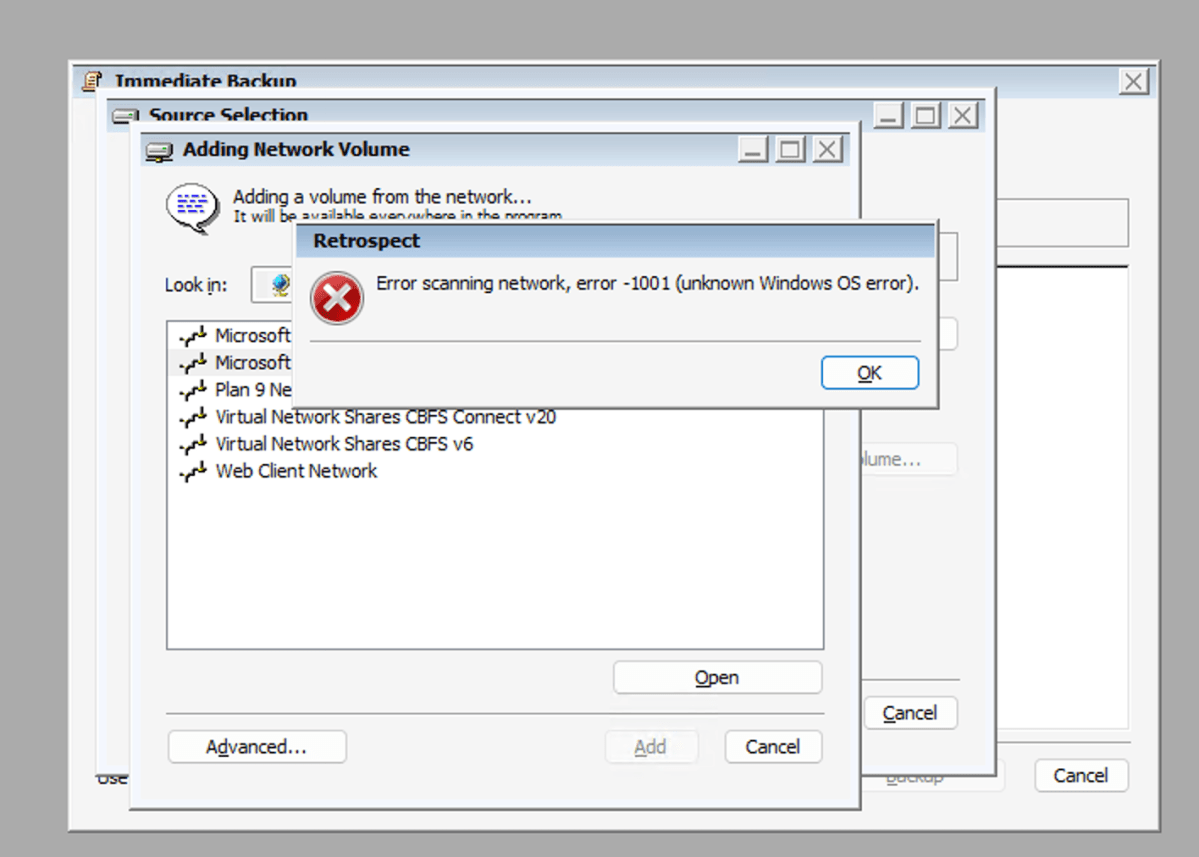
I was forced to use Advanced, where you type in the URL (e.g., \\192.168.1.105\Public). Not fatal, but hardly friendly to the average user. Apparently, the company has been aware of this for some time as tech support told me about it during the previous review. To that I say, “Fix it, then!”
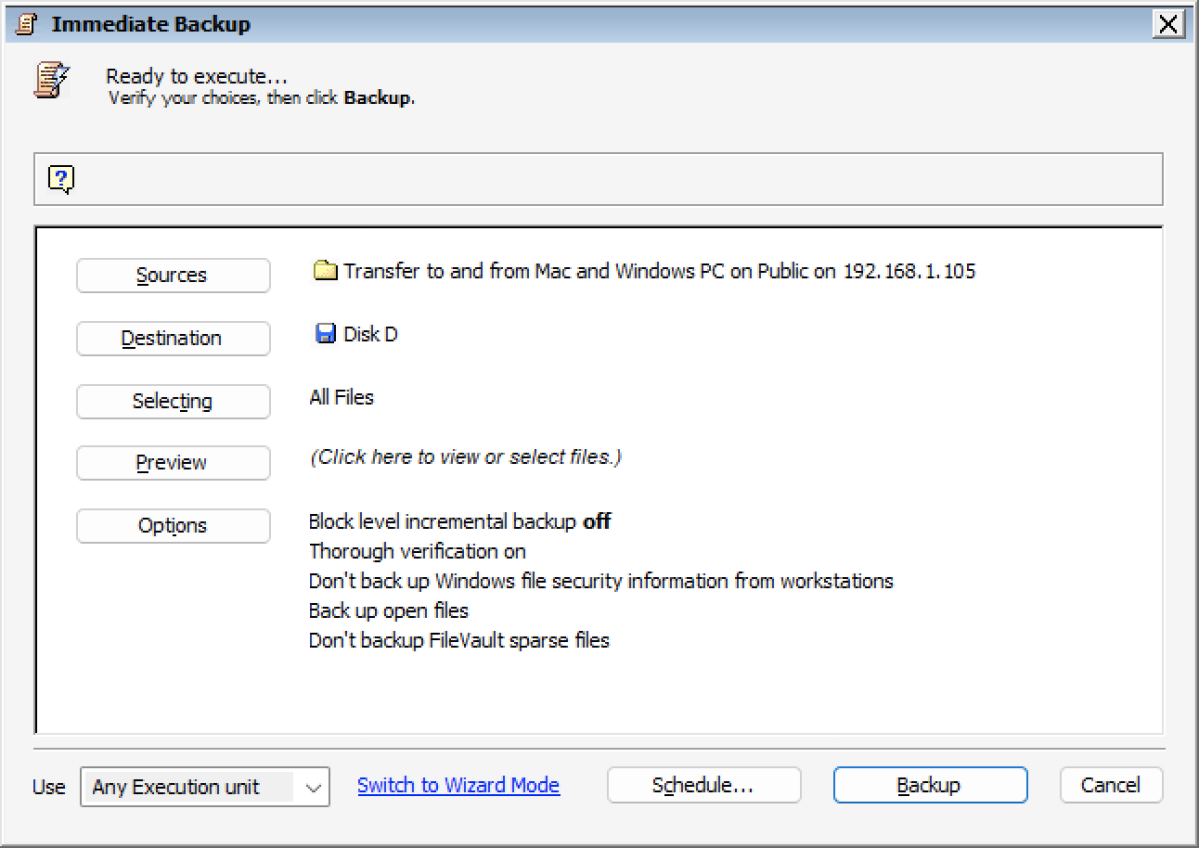
Regardless of some irritations, the speed and integrity of backups are of primary importance — with those, Retrospect 20 Desktop was aces. Uber reliable, providing accurate feedback on the progress of backups, and fast — all important.
Should you buy Retrospect 20 Desktop?
Currently, in terms of granular control, features, and uber-broad support for various types of modern and legacy media, Retrospect is without peer. If you don’t mind the high price of admission, or the time it takes to wrap your head around it, then by all means. You can kick the tires (there’s a trial) to find out.
For most users, however, worthy alternatives such as Aomei Backupper, and Easeus Todo backup are far easier to learn and use, and offer nearly as many features. Personally, I get by for zero cash with Windows File History and the free version of Macrium Reflect. Just sayin’.
Additionally, despite the full number revision, this is a relatively minor upgrade. Unless you want to maintain the annual support option — something generally of value only to business users.
Editor’s note: Because online services are often iterative, gaining new features and performance improvements over time, this review is subject to change in order to accurately reflect the current state of the service. Any changes to text or our final review verdict will be noted at the top of this article.


