
At a glance
Expert's Rating
Pros
- Superb day-long battery life
- Solid keyboard
- Lovely display
- Thorough, detailed instructions and packaging
- Excellent cooling
- Great noise filtering
Cons
- Lengthy ship times
- Fluctuating prices
- Intel-specific memory costs twice as much as Ryzen
- Mediocre webcam
Our Verdict
Framework’s Laptop 13 Pro DIY Edition is a pleasure to assemble and use, meeting all my requirements for a solid productivity laptop. But market forces are blowing hard against it.
Price When Reviewed
This value will show the geolocated pricing text for product undefined
Best Pricing Today
Best Prices Today: Framework Laptop 13 Pro DIY Edition
You have toreallywant to buy the Framework Laptop 13 Pro DIY Edition.
Normally, you’d simply click an order button and have a new laptop delivered in just a few days. Framework’s process is its own sort of odyssey: pricing out your configuration, risking that it might increase in price while waiting literally months for it to arrive, then sitting down with a collection of parts to put it all together. It’s not Nolan’s latest epic, but the parallels are there.
Is it worth it? Fortunately, yes. Incredible battery life, a terrific screen and keyboard, and clear instructions make this latest edition easy to recommend. But boy, there’s just so much of a journey before it even arrives.
Framework Laptop 13 Pro: Where to buy
Framework sells its Laptop 13 Pro solely through its website, not individual retailers. Buyers have the option of two versions: a more traditional Pre-built version, with everything ready to go out of the box, or the DIY Edition, where the customer assembles the components and installs the operating system.
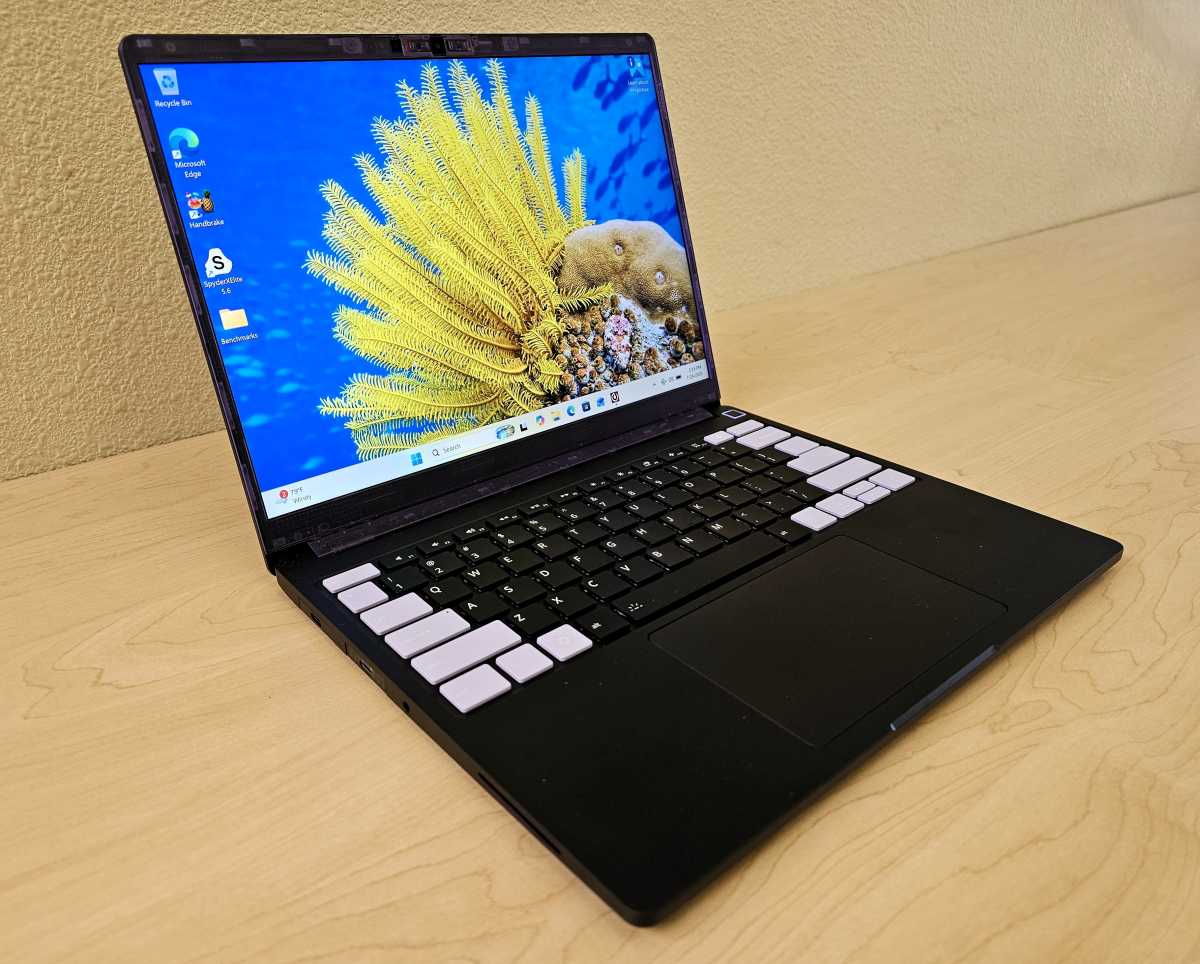
The latter feels more like assembling IKEA furniture, simply connecting parts rather than building a PC. Though the complexity might seem visually intimidating, you’re actually doing less than you would to build a desktop PC; there’s no thermal paste to apply, for example. Basically, I think that most users–even relative novices–can pretty easily assemble the Framework Laptop 13 Pro.
Still, Framework does charge a premium for the pre-built configuration, about $200. The cheaper DIY Edition costs at least $1,199 for the Laptop 13 Pro with an Intel Core Ultra Series 3 processor and $1,599 for the pre-built; a DIY Edition with an AMD Ryzen AI 300 chip inside costs at least $1,399 for the DIY version and $2,299 for the pre-built. (Note:The DIY Editions do not come with memory or storage preconfigured, and those necessities cost extra.)
In part, that’s because the configurations vary between platforms. At press time, the base Core Ultra 3 configuration includes a Core Ultra 325 chip (4 performance cores, 4 low-power efficiency cores), 16GB of RAM and 512GB of SSD storage — the version we were given to review. An Ultra X7 358H option is also available. The Ryzen configuration includes an 8-core, 16-thread Ryzen AI 7 350, 8GB of RAM, or more (yes, even in the base model) and 500GB of SSD storage and climbs from there.
Mark Hachman / Foundry
Framework Laptop 13 Pro: Order challenges
The most complicated part of Framework’s process isn’t actually assembling the Laptop 13 Pro DIY Edition — it’s ordering it, deciding upon what you’d like, and navigating the stormy seas of supply, demand, and shipments.
Each system you order is assigned to a “batch,” which used to indicate just the ship date. At press time, the first available batch of Laptop 13 Pros (Batch 18) with a Core Ultra inside now ship in(gulp)December. Both of the AMD Ryzen versions of the Laptop 13 Pro have also been delayed from August until September, Framework says. Framework also asks for a $100 refundable deposit.
Part of the reason for Framework’s “batch” shipments is that each has its own ship date and pricing, which has become a more significant variable as memory and storage have become scarce. An earlier delay didn’t help. In this case, there’s some more bad news.
On July 22, Framework issued a lengthy update that essentially says this: the LPCAMM2 memory used in the Core Ultra version of the Laptop 13 Pro more than doubled in price. Buyers in Batch 4 or earlier will receive their configurations as ordered, but Framework eliminated the 64GB configuration on later shipments. DIY Edition and Mainboard orders that were originally configured with 32GB have been updated (changed) to use a 16GB module at the original 16GB price, according to Framework.
Mark Hachman / Foundry
The company said it will try to absorb some of the price increase, but couldn’t absorb all of it without putting itself at financial risk. Framework also said that it will likely have to increase pricing again, and soon, for new orders. Basically, the message is that DRAM supply and pricing have become worse, and will worsen further — so buy now.
Framework fans on Reddit were furious, especially because chief executive Nirav Patel — in response to my question, ironically — originally promised that Framework would lock in the pre-order price even if costs increased. Unfortunately, he also added: “They are also goingto get the configuration they orderedat the price they ordered it at.” (Emphasis mine.)
That’s not true since Framework replaced orders with 32GB of RAM and shipped them with 16GB — not the configuration those customers ordered.
I can’t really recommend a particular DIY Edition configuration because of these variables. At press time, however, the impact of the LPCAMM2 price hike is apparent. 16GB of LPDDR5X LPCAMM2 memory on the Core Ultra platform costs $239, $800 for the 32GB version, and a whopping $1,600 for 64GB. Versions with Ryzen chips inside will ship with DRAM for far less: 8GB of DDR5 memory is $160, 16GB is between $250 and $320, and 32GB is $405 to $500. A 64GB configuration costs $810.
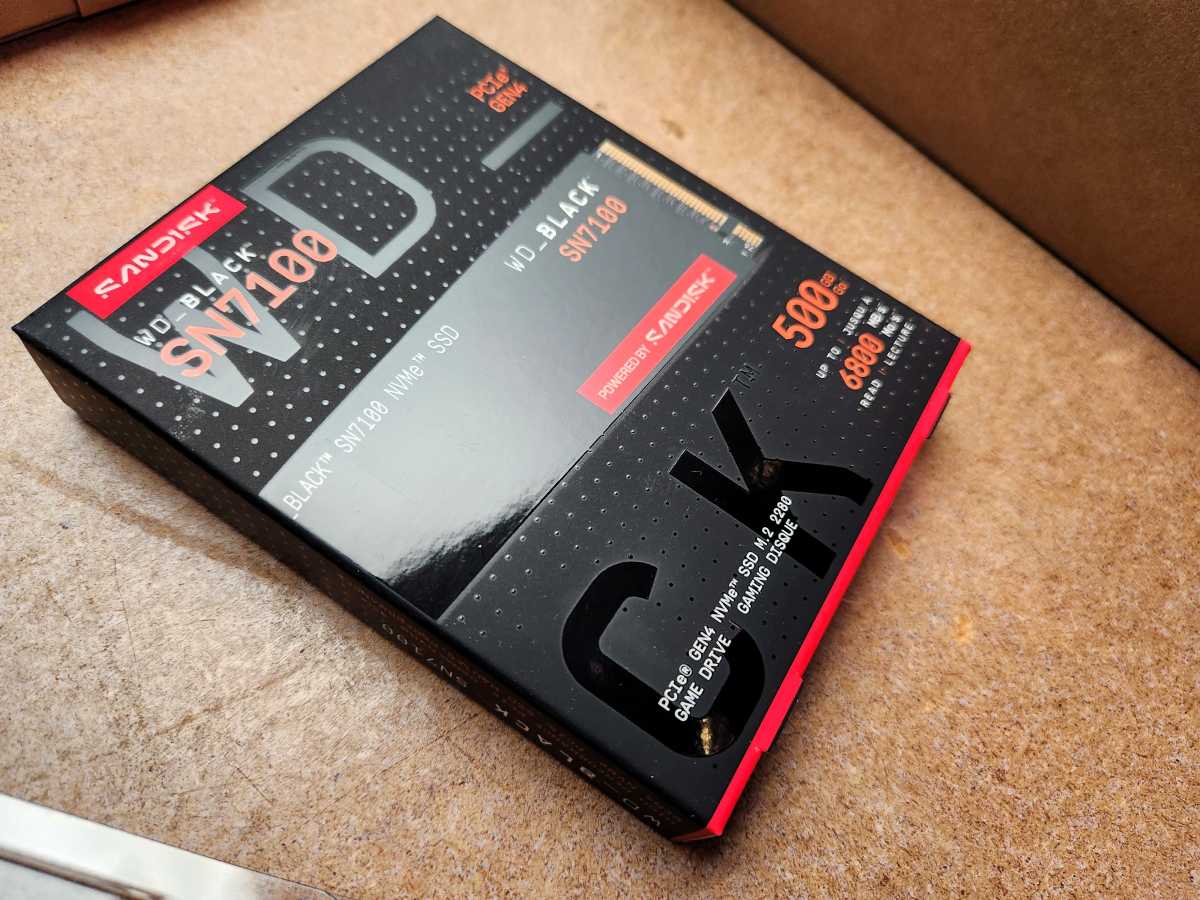
Storage prices are a bit more modest: a 500GB SanDisk PCIe 4.0 SSD costs $135, while the 1TB and 2TB versions cost $215 and $505, respectively… up to $2,269 for an 8TB SSD. The DIY Edition also asks you to buy or provide your own operating system, which otherwise costs about $140 for Windows 11 Home.
Framework Laptop 13 Pro: Specs
- CPU:Intel Core Ultra 5 325, Ultra X7 358H, AMD Ryzen AI 7 350, Ryzen AI 9 HX 370 (Core Ultra 5 325 as reviewed)
- Memory:16-64GB LPCAMM2 LPDDR5X DRAM (Intel) or 8-96GB DDR5-5600 (AMD) (16GB as reviewed)
- Graphics/GPU:Varies by CPU; no discrete graphics options
- Display:13.5-inch (2,880×1,920) LED-lit, 700nits rated
- Storage:500GB, 1TB/2TB/4TB/8TB PCIe 4.0 M.2 SSD (500GB as reviewed)
- Webcam:9.2MP (1080p)
- Connectivity:Optional; users select four: either 10Gbps USB-C, USB-A, HDMI, 2.5Gbps or 1Gbps Ethernet, DisplayPort, SD
- Networking:WiFi 7 BE211
- Biometrics:Fingerprint reader
- Battery capacity:74Wh
- Dimensions:11.7 x 9.0 x 0.62 inches
- Weight:3.13 pounds
- Operating system:Windows 11 Home/Pro (Windows 11 Home as reviewed)
- MSRP:$1,712 (base), $1,823 (as tested)
Framework Laptop 13 Pro: Assembly
Framework was founded upon a simple premise. Desktop PCs are upgradable, laptops are not but should be. The heart of the Framework Laptop 13 Pro is what Framework calls the Mainboard (or motherboard), which can be disassembled, removed, and upgraded with a (future) replacement that contains an upgraded processor.
Mark Hachman / Foundry
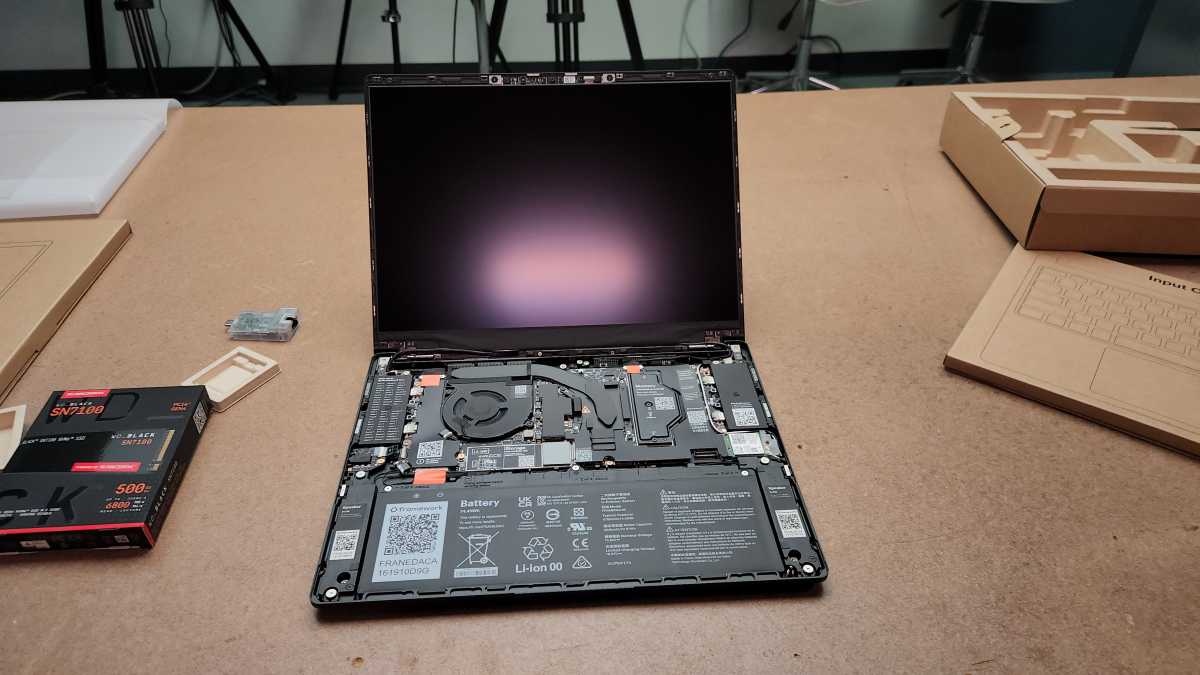
Assembling the Framework Laptop 13 Pro DIY Edition doesn’t require fiddling with the Mainboard at all. Our review unit included the Mainboard already pre-installed into the bottom of the Laptop 13 Pro chassis.
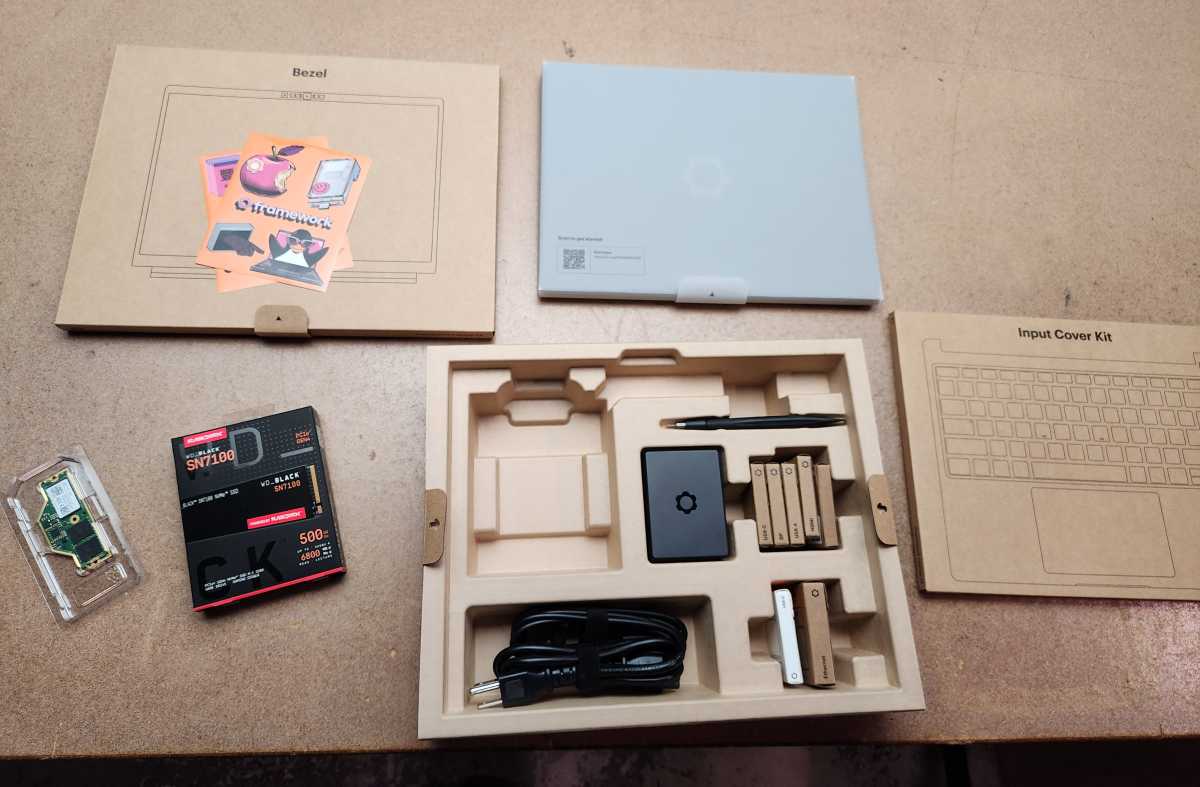
Essentially, Framework provides the Mainboard/chassis, the input (keyboard) cover, a few configurable I/O expansion cards that you can plug in, the display bezel in various colors, and then whatever memory and storage you ordered, plus an assembly tool with a Torx bit. Framework also publishes a detailed step-by-step guide to put it all together. In general, the company does an excellent job of making it simple.
Rather than detail the entire process, I’ll let Framework’s guide be yours as well. Still, I have some notes.
Mark Hachman / Foundry
- Framework includes an HTML glyph to point you to the direction of the guide, though when I captured it it took me to the prebuilt assembly guide instead. (A small link from that page led to the DIY assembly instructions.)
- Installing the LPCAMM2 memory feels quite satisfying; once you loosen and remove the cover, the memory itself fits neatly on top of the interposer, aligned with three small pegs. Just make sure you don’t touch the interposer (quite doable) and make sure the pegs are aligned. I successfully installed it the first time, but when checking something I didn’t screw down the screws snugly enough the second time. Framework includes the necessary screwdriver right in the box.
- Except for the SSD screw, the screws aren’t designed to be physically separated from their mounting holes. That’s lovely, as you don’t need to worry about knocking a tiny Torx screw to the floor.
- The only connector clip you need to worry about connects the touchpad to the mainboard. Remember that it’s there! The input cover / keyboard needs to be flipped downward, and if you’re not careful (like I was) you can rip it free. Fortunately, there was no lasting damage.
- The I/O cards felt much stiffer than in earlier Laptops. It’s possible I damaged the locking latch. Otherwise, they seem like they’re now installed permanently.
- Installing the bezel is literally a snap, but you’ll need to eyeball it and ensure the display cable doesn’t get pinched.
Assembly took me about 25 minutes, in part because I had to chase down the DIY instructions in the middle of it.
The one aspect that’s still a little confusing is the driver configuration. Framework’s hardware installation instructions end with a link to its Windows installation guide, but also separate links to its driver pages. I’d recommend working straight through the Windows installation instructions instead. You’ll end up downloading two separate drivers (Wi-Fi for installation, then a more comprehensive driver package later) that will set everything up appropriately. Just make sure you have an 8GB or larger USB key for installing Windows.
I didn’t time the Windows installation process, but Framework suggests allowing up to 20 minutes to complete it.
Framework Laptop 13 Pro: Out of the box and build quality
After assembly and installation, everything worked perfectly, as any laptop should on first boot.
Framework manufactures the entire Laptop 13 Pro out of CNC machined aluminum, though the overall feel is of a plastic chassis. Still, it’s a tad weighty for a 14-inch laptop at about 3.17 pounds. It feels nice and sturdy.
Mark Hachman / Foundry
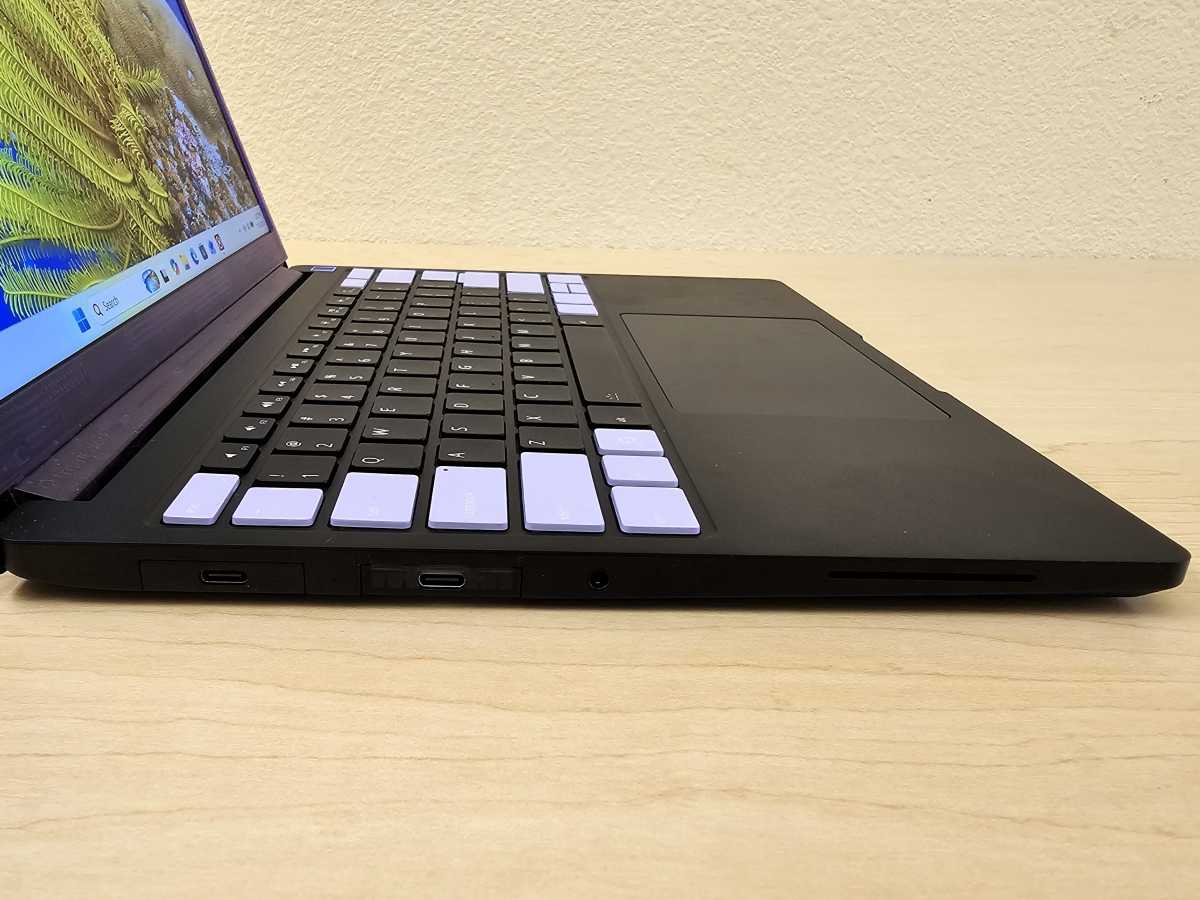
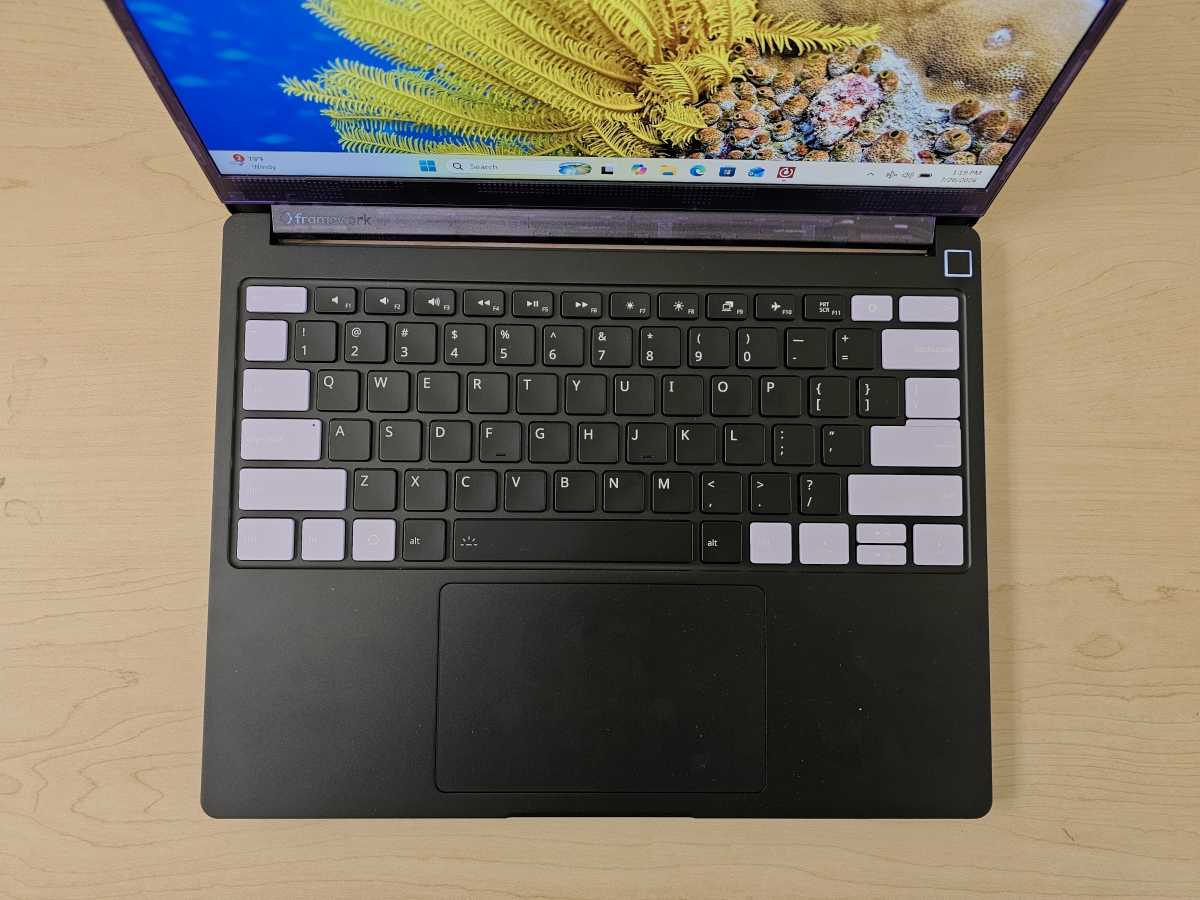
Two things impressed me immediately: the keyboard, with the “important” function keys highlighted in lilac, and the incredibly quiet fan. Framework says that there’s a 65 x 5.5mm cooling fan inside it and a single 10mm heat pipe, but the laptop runs so cool I rarely heard it turn on. Even stress testing didn’t reveal any thermal issues. It’s just a well-designed laptop.
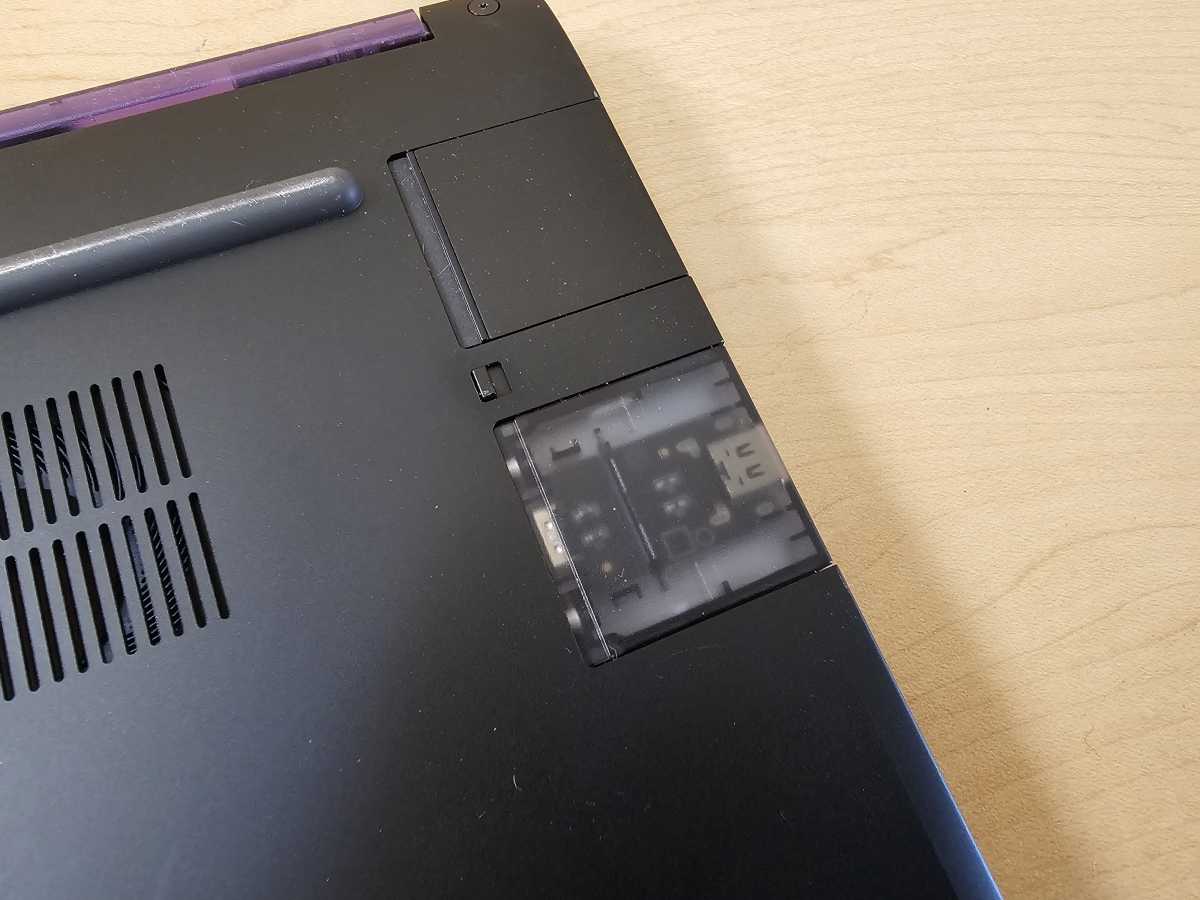
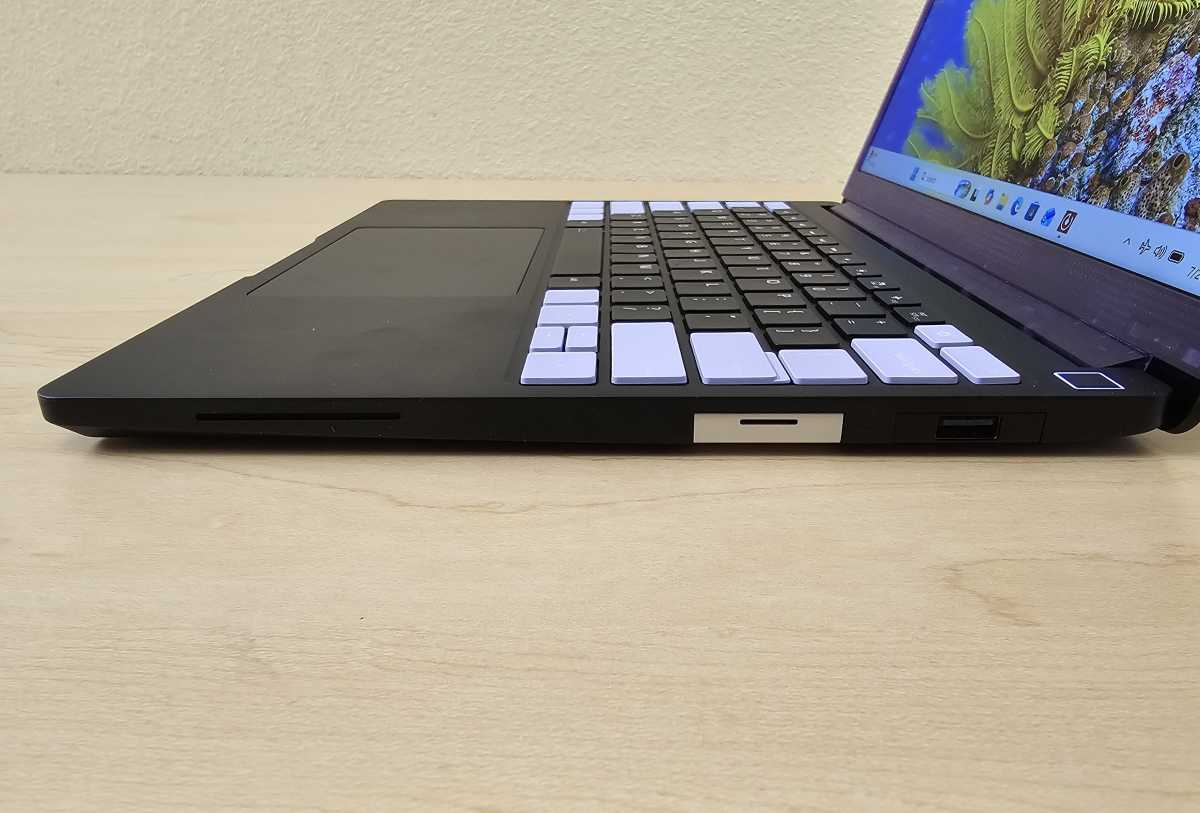
The only real flaw I found is with the I/O modules. Framework includes four Thunderbolt 4 ports, two on either side, into which you can slide four I/O expansion cards. These modules can be ordered from Framework, and include 10Gbps versions of USB-C and USB-A ports, HDMI 2.0b, DisplayPort, plus microSD and SD slots. All of them can be locked in by flipping a small switch on the bottom of the laptop.
Mark Hachman / Foundry
The laptop also comes with an Ethernet expansion card, which just wouldn’t remain securely fastened. I’m also not sure if I ended up jamming the other I/O cards in, as they seem to be stuck for good. Finally, some laptops also build the SD and microSD slots close by one another, and dedicating an I/O port to each seems like a bit of a waste. A 3.5mm headphone jack is built in.
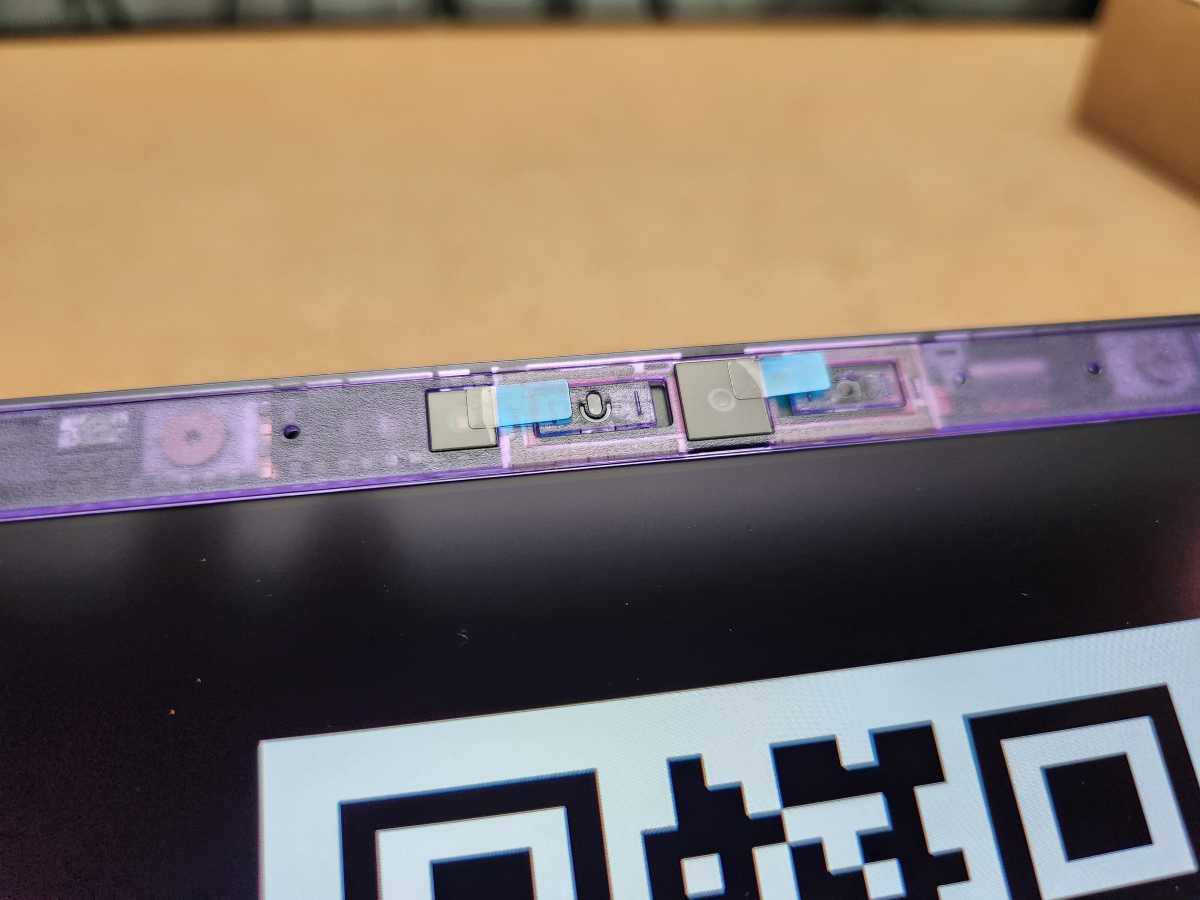
Framework’s laptop comes with sliding physical covers for the webcamandmicrophone, which is a first for me. They’re stiff, and really need you to dig a fingernail in there to move them.
Mark Hachman / Foundry
Framework didn’t originally send us a Windows license, but provided one on request.
Framework Laptop 13 Pro: Display and audio
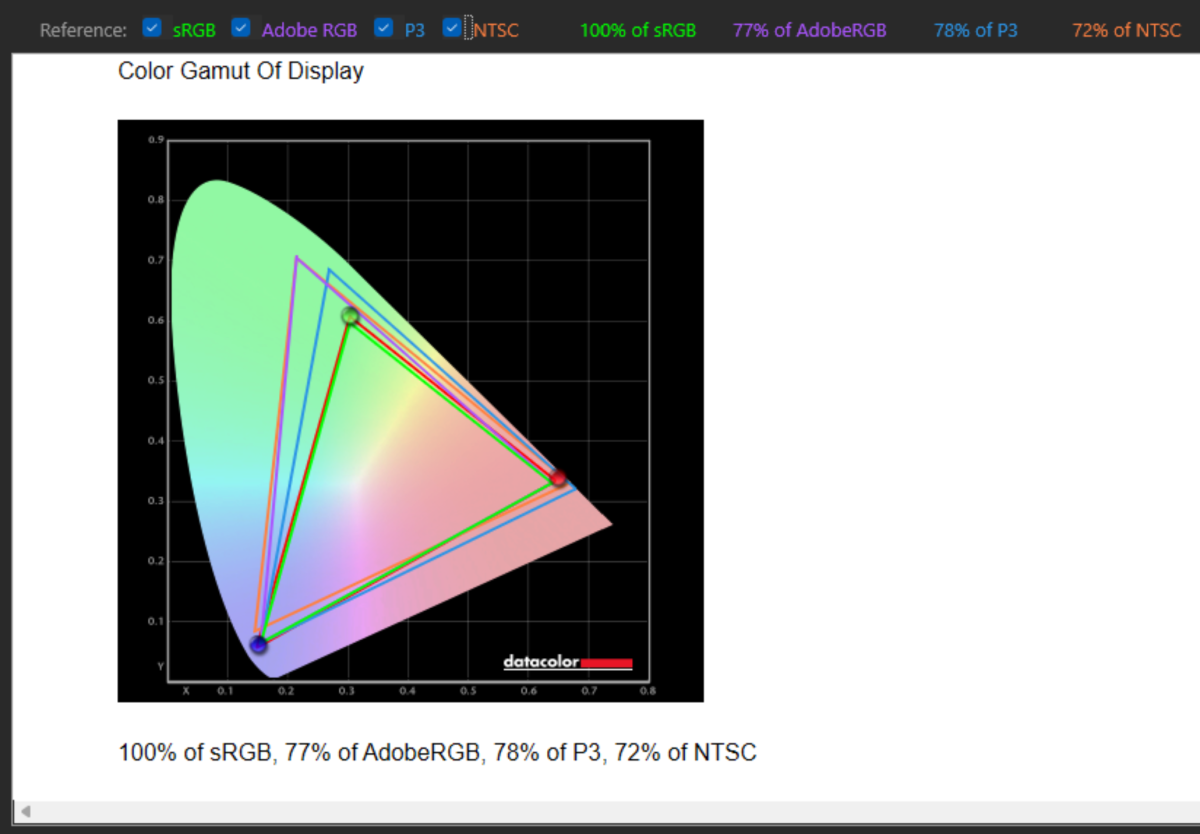
I really loved this laptop’s 13.5-inch (3:2 viewing ratio) display when I tried the Framework Laptop 13 Pro earlier, and I still do. It’s a laundry list of desirable features: 2880×1920 resolution, 704 nits (wow!) of measured brightness, together with full sRGB coverage and even a matte screen that doesn’t reflect light that much.
Mark Hachman / Foundry
Framework isn’t formally calling this an OLED display, just a “purpose-built” LED display that also happens to be the company’s first touchscreen. Visually, the contrast is sharp and OLED-like, though I feel like a true OLED pops the colors and contrast a bit more. This feels more like a productivity notebook rather than something aimed at content creation, which makes sense, given the lack of dedicated graphics on our review unit. Framework does offer Intel’s powerful X-class integrated GPU, including the Ultra X9 388H, which was sold out at press time.
The display can also clock up to 120Hz for smooth mousing and some light gaming, and down to 30Hz to preserve battery life. All of these are modern features you’d expect to see in a modern laptop.
Framework includes a pair of 2-watt, side-firing speakers on the Framework Laptop 13 Pro DIY Edition. That’s a little unusual, as they typically fire either up toward the user or underneath the chassis. Framework adds the Dolby app to the laptop, with support for Dolby Atmos.
Normally, Atmos is the lifesaver poor laptop audio needs. Not in this case. Everything is a little flat and a little quiet, top to bottom. That doesn’t mean that the laptop’s audio is poor, just a shade above average.
Framework Laptop 13 Pro: Biometrics, webcam, and mic
Framework has also included a pair of MEMS mics with a rated 67 dBA sensitivity to capture your voice while making recordings or holding video calls. The audio noise filtering is excellent. As I normally do, I play back rock music from my phone, moving it around my head and off to one side. I do the same with a white noise track of rainfall. In both cases, the mics filtered the unwanted noise nearly perfectly.
Mark Hachman / Foundry
Again, Framework’s Laptop 13 Pro includes a sliding “mic shutter” that at least implies that the mic is being physically blocked. I don’t know if that’s literally true, but the laptop didn’t record the faintest whisper of sound when the mic blocker was turned on.
I’m less impressed with the webcam and its rated 9.2Mpixel image sensor. I can live with its 87-degree field of view, though I prefer it to be a little tighter. The resulting image is just okay, though grainier than I’d like and it tended to be easily blown out when in brighter, natural light. I’ve included an example shot below, as well as a shot where I was more front-lit, to the right. I’m not impressed with either.


I wouldn’t go running to our list of best PC webcams, but I wouldn’t consider the laptop’s webcam that great, either.
Framework’s Laptop 13 Pro doesn’t include a depth camera for facial recognition. Instead, a fingerprint reader is built into the power button in the upper-right corner of the laptop. Framework physically separated the power button from the top row of keys, giving it its own little niche.
Biometric authentication is difficult to test over a short review period. In this case, though, the laptop correctly identified me 12 out of 13 tries.
Framework Laptop 13 Pro: Keyboard and trackpad
I think the typing experience is one of the Laptop 13 Pro’s strengths. I prefer “deeper” keyboards with a greater degree of key travel, and the Laptop 13 Pro’s 1.5mm of key travel is more than the 1.3mm typically found on other laptops. On paper, a discrepancy of 0.2mm might not appear to be anything at all, but I guarantee that your fingers can feel it. That extra distance feels a bit softer and more luxurious, like a thicker cushion in a running shoe.
Framework doesn’t radically change the laptop’s keyboard, save for a few places. The “Start” key is replaced by a Framework gear icon, for example, and there’s no Copilot key. The only objectionable change to the standard layout was adding an additional “gear” key to the row of function keys, which leads straight to the Framework home page. I don’t see why that’s necessary.
Mark Hachman / Foundry
The laptop does come with a large haptic trackpad, however, which takes up a large chunk of the palm rest. Haptic touchpads are equally clickable over their entire surface, which adds to their utility. Framework says the trackpad has four haptic elements–a meaningless data point for me. A haptic trackpad is definitely a step up from a standard trackpad, however.
One quick note here. The trackpad will function after the Laptop 13 Pro DIY Edition is assembled. However, the standard gestures you normally associate with a trackpad (like scrolling) won’t function without installing Framework’s driver package.
Framework Laptop 13 Pro: Performance
If there’s any knock against the Intel Core Ultra 300 (Panther Lake) processor at the heart of this laptop, it’s the gap in performance between the top-end Core Ultra X7 358H and Core Ultra X9 388H processors, and the decidedly mid- to low-end Core Ultra 5 325 chip we received.
I’m not picking a fight with Framework here! A small supplier like Framework deserves to hold on to its premier chips for paying customers. But the Laptop 13 Pro DIY Edition just won’t look quite as hot against the competition — save for battery life. And if you frame the Framework Laptop 13 Pro as a productivity device, it looks pretty decent by comparison.
I compared the $1,823 Framework Laptop 13 with its 13.5-inch display to a number of 14-inch laptops. Four of them include Intel’s powerful X-series integrated graphics: the $1,399 HP OmniBook Ultra 14, the $1,599 MSI Prestige Flip 14 AI+, the $1,999 Dell XPS 14, and the $3,089 Asus ExpertBook Ultra B9. (I’ve tried to use the current prices, rather than MSRP, for a more direct comparison.)
I also included a representative of the Qualcomm Snapdragon family, the $1,399 Lenovo Yoga Slim 7x Gen 11, and the $1,318 Lenovo Yoga 7a 2-in-1 with an AMD Ryzen 445 chip inside. Finally, I included the $1,329 Acer TravelMate X14 14 AI and the $1,708 Lenovo ThinkPad X13 Gen 6.
Framework’s Laptop 13 Pro uses the Core Ultra 5 325, which gives the system four performance cores and four low-power efficiency cores to use, which has some odd impacts on the laptop’s performance.
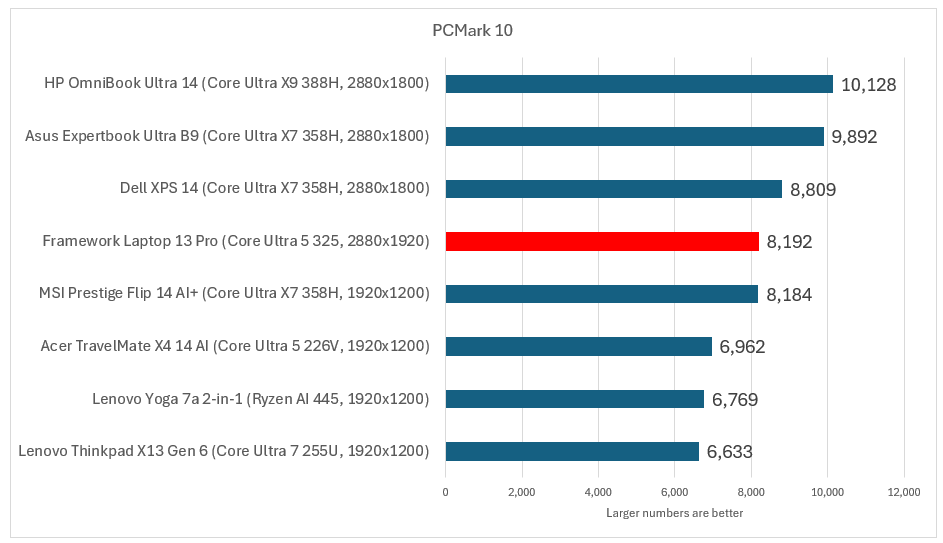
Running PCMark 10, which tests a variety of niche, but real-world apps (video conferencing, web browsing, CAD work, and more), the laptop performs surprisingly well, which might be the saving grace for the Laptop 13 Pro. It just edges out one of the X-series laptops and finishes below the others.
Mark Hachman / Foundry
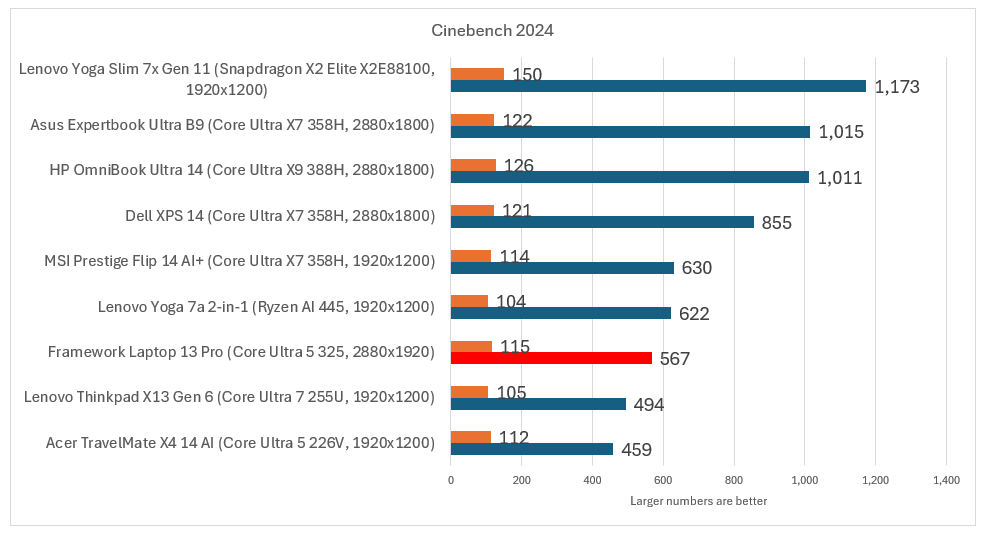
That’s a little surprising, given that PCMark usually tracks the performance of the Cinebench benchmark as well. Cinebench is a completely synthetic benchmark that measures the CPU’s ability to render a scene using the CPU alone. In this case, the Framework Laptop’s CPU gets beaten up by laptops with more available CPU cores.
Single-core CPU performance usually impacts how “snappy” and responsive the laptop feels, and there’s nothing to write home about here.
Mark Hachman / Foundry
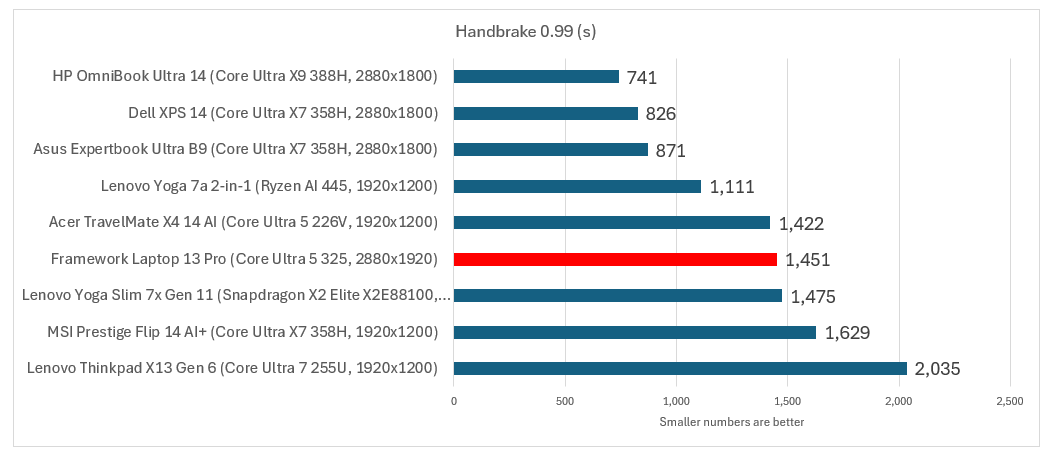
I was impressed by Framework’s ability to build a laptop that really doesn’t suffer from any thermal issues. Handbrake is an application that is used to transcode video, and it’s a monumental task that stresses all of the CPU cores. In reality, it’s a great way to tell if the laptop will end up thermally throttling down to avoid overheating, but also to track the sustained performance of the CPU.
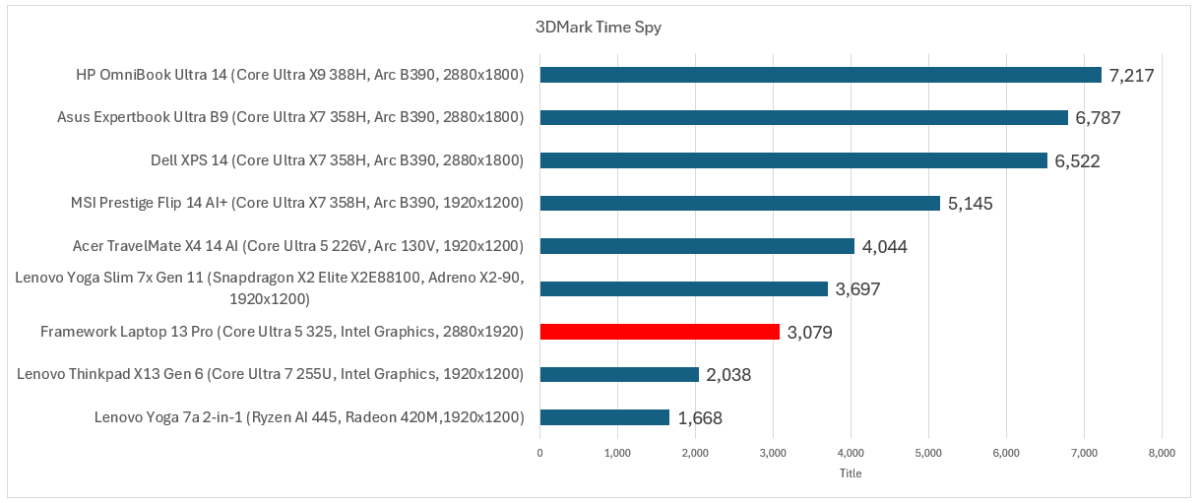
Here we’re seeing pretty average performance. I also tested the CPU by performing a single run of Cinebench 2024, then following it up with a sustained 10-minute run. The laptop’s performance didn’t drop by a single point. I also performed a similar stress test using 3DMark, which loops a 3D benchmark twenty times in succession. It passed with flying colors.
Mark Hachman / Foundry
Lacking a powerful integrated GPU, the Framework laptop 13 Pro still performs near the bottom of the pack of these productivity laptops. It really goes to show how sizeable the performance disparity is between the high and the low end of the Intel Core Ultra 300 “Panther Lake” family.
Just to return to the PCMark score for a second. That benchmark is an aggregate of various tasks. In this case, a laptop like the Framework Laptop 13 Pro is going to be (about) the equal of an HP OmniBook Ultra 14 in app startup, moving files around, and writing. The benchmark’s details page reveals that there’s a sharp difference between the two in photo editing and 3D rendering, which is what 3DMark measures.
Mark Hachman / Foundry
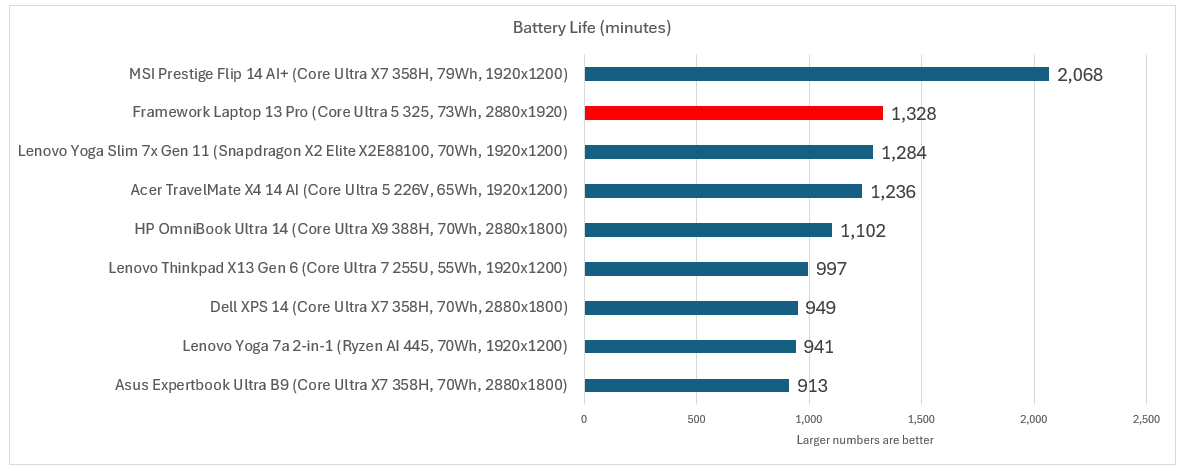
With a 71 watt-hour battery inside of it and a rather conservative processor, you’d expect that battery life would be a standout… and it is! The laptop lasted 22 hours and eight minutes.
I tried to run the Procyon productivity benchmark to check how well the laptop would perform running general Microsoft Office tasks like crafting spreadsheets and editing slideshows, but it glitched after eight hours of runtime, leaving 30 percent of the battery left. That’s a solid sign that this laptop will be an all-day performer, though.
Mark Hachman / Foundry
Should you buy the Framework Laptop 13 Pro?
An online commenter tried to convince me recently that Framework laptops are a “joke” simply because of the premium price the company charges for upgrades. $450 or so buys you a new Mainboard to upgrade an existing Framework laptop.
Compared to the laptops I tested against, there are several cases where Framework charges $600 or so more. But Framework isn’t alone in adjusting its prices. Component pricing fluctuates, laptop prices change as a result, and retailers adjust their own pricing to move inventory. It’s a world that’s constantly in flux.
Does that make the Framework Laptop less valuable? On the contrary. Buying a Framework Laptop 13 Pro DIY Edition means you’re buying an, uh, framework for future upgrades. Upgrading a Framework laptop means simply buying another Mainboard — again, paying $450 or so. You keep your SSD and your DRAM. With other laptops, you’re replacing the whole thing wholesale.
I’m not incredibly impressed with the performance of the Core 5 325 Mainboard and loadout Framework provided, so I’d lean toward the alternatives I tested against.
I think, given what Framework has said about LPCAMM2 memory prices, that early buyers sailed their computing needs into safe harbor. Having secured their memory and storage, upgrades really only mean replacing a future Mainboard. If you’re buying this laptop now, you’re still in the teeth of the storm.


